![Crosschq Logo 534x115.png]](https://support.crosschq.com/hs-fs/hubfs/Crosschq%20Logo%20534x115.png?height=40&name=Crosschq%20Logo%20534x115.png)
How to Use the Interview Management Section
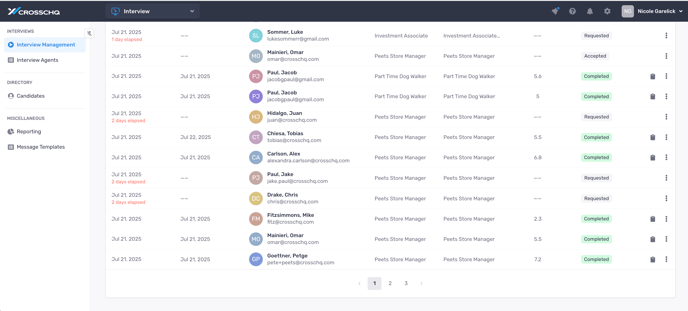
The Interview Management section allows you to view, analyze, and download completed interviews within Crosschq.
Step-by-Step:
- Navigate to the Interview Management tab in Crosschq.
- Click on a completed interview to open the report.
- Click the clipboard icon to view the full interview report.
Each report includes:
- Summary Overview
- Candidate Responses & Transcript
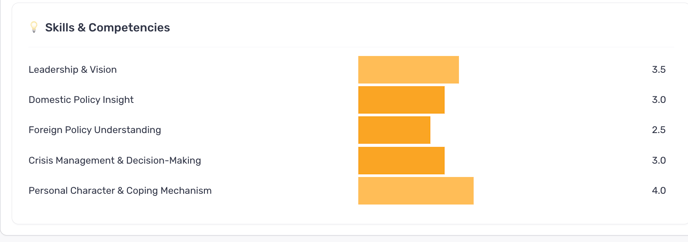
- Skill Ratings (1–5 scale)
- Strengths & Areas to Explore
- Resume (if uploaded)
- Language proficiency rating (if enabled)
- Candidate Feedback
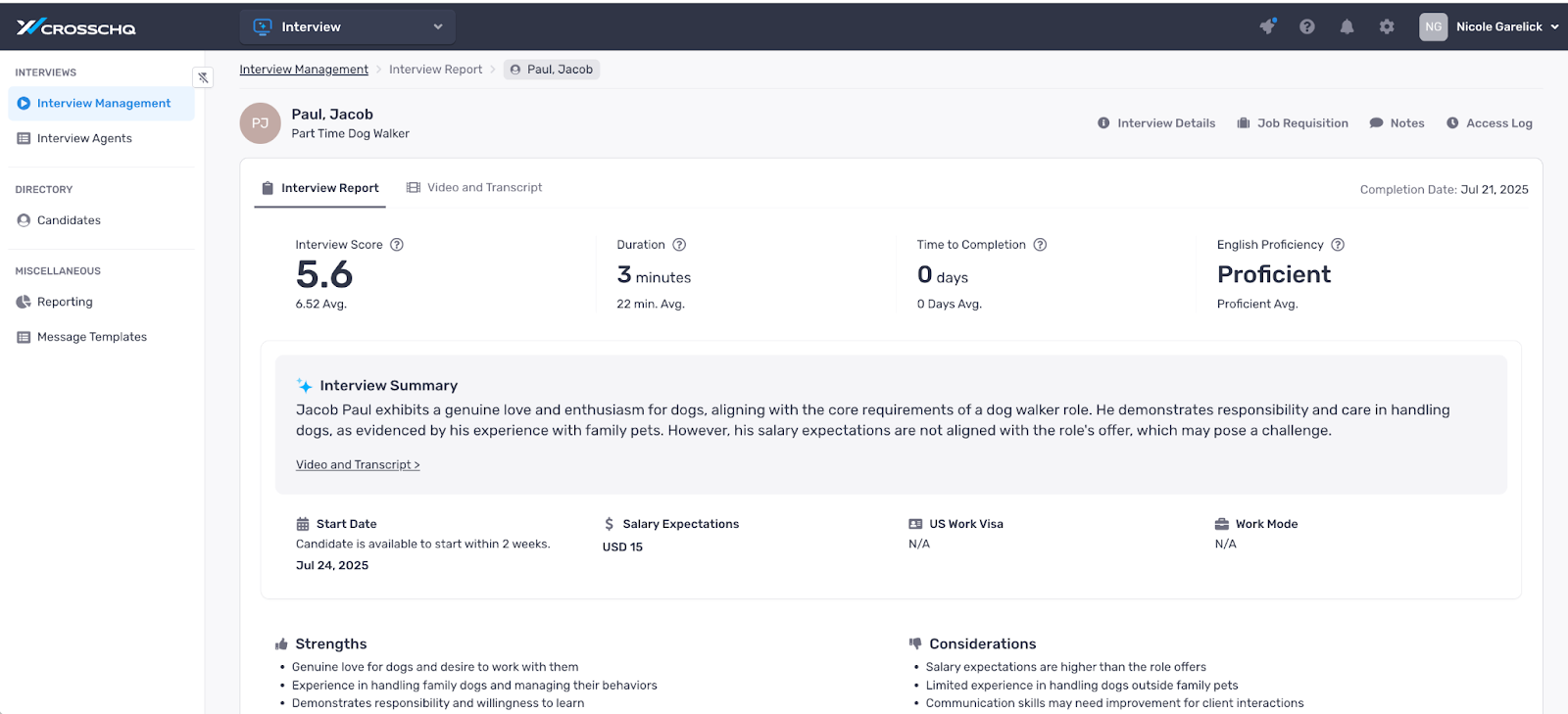
You can also:
- Review the associated job requisition, and
- Add internal notes for team collaboration.
Accessing the Completed Interview
-
Click on the completed interview to begin reviewing.
-
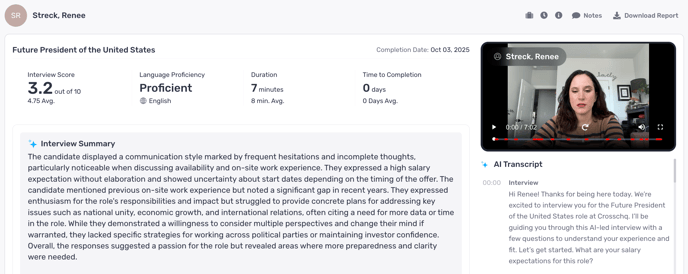
You will find the following information:
-
Interview score
-
Language proficiency
-
Duration of the interview
-
Timely completion information
-
Review Interview Summary
-
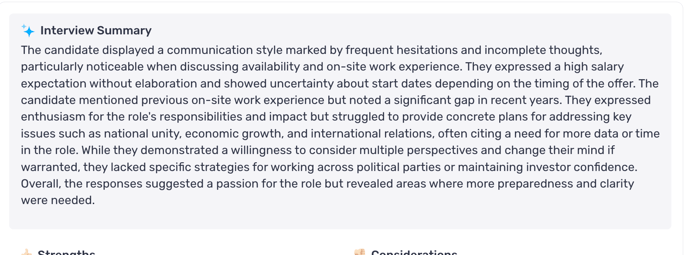
Look at the interview summary which includes:
-
Overall strengths and considerations
-
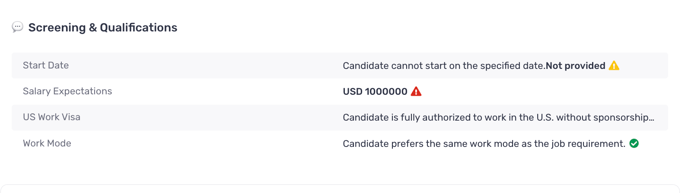
Screening qualifications
-
Skills and competencies information
-
Overall A.I. transcript
-
View Interview Details
Check Additional Information

-
Access the script of the interview along with a video recording.
-
At the top, you can view the job requisition and any additional follow-up questions.
-
Review the access log for tracking purposes.
-
Find information about the job requisition.
-
Take notes that can be shared with your team.
Download the Interview Report
-
Use the option to download the interview report.
-
This will generate a PDF of the interview report for your records.