![Crosschq Logo 534x115.png]](https://support.crosschq.com/hs-fs/hubfs/Crosschq%20Logo%20534x115.png?height=40&name=Crosschq%20Logo%20534x115.png)
Follow the steps below to connect ADP with Crosschq:
- Enable the ADP integration
- Configure API settings
- Configure app settings
Enable the ADP integration
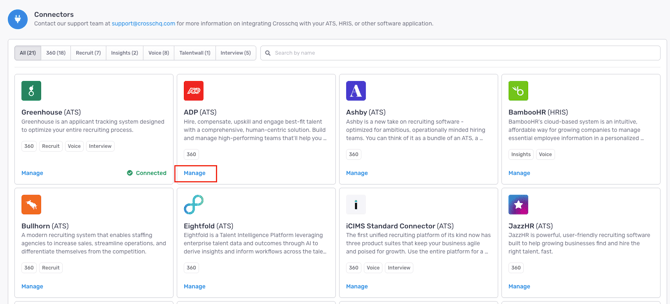
Navigate to Organization Settings > Connectors. Locate the ADP connector and click Manage.
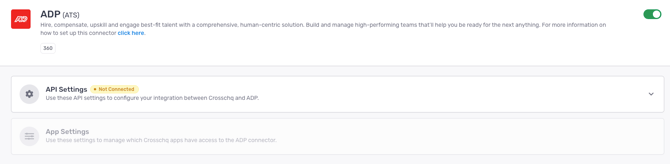
Enable the ADP connector by selecting the toggle on the right. The toggle should be green.
Configure API settings
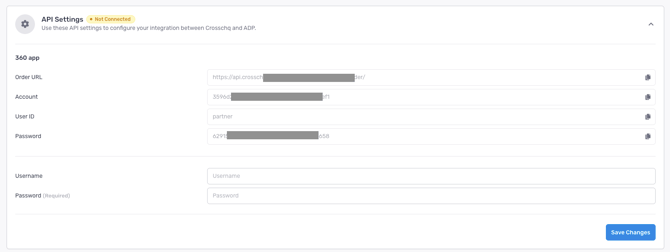
Once the connector is enabled, the API Settings panel will expand. The following fields will be pre-populated by Crosschq under the 360 app section:
- Order URL
- Account
- User ID
- Password
These credentials will be the ones ADP uses to connect to Crosschq.
Enter your ADP credentials in the following fields:
- Enter your ADP Username. Contact your ADP administrator if you do not have this information.
- Enter your ADP Password (Required). Contact your ADP administrator if you do not have this information.
- Click Save Changes.
Configure app settings
Once your API settings are saved, you can configure additional settings for specific Crosschq apps.
