![Crosschq Logo 534x115.png]](https://support.crosschq.com/hs-fs/hubfs/Crosschq%20Logo%20534x115.png?height=40&name=Crosschq%20Logo%20534x115.png)
Crosschq has built a connector for MS Teams, which enables your team to communicate important Crosschq notifications using the MS Teams channel of your choice.
Follow the steps below to connect MS Teams with Crosschq:
- Enable the connector for MS Teams.
- Configure app settings
- 360 report sharing
- Insights dashboard and chart distribution
Enable the Connector for MS Teams
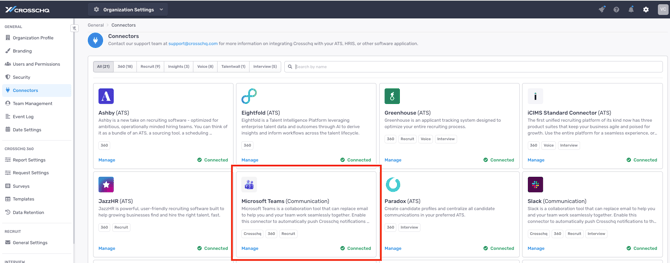
Search MS Teams from Organization Settings > Connectors. Click Manage from the MS Teams section.
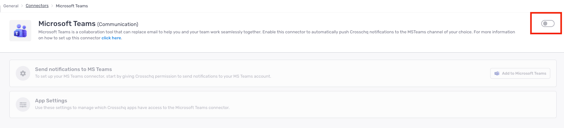
On the next page, turn on the connector for MS Teams by clicking the toggle on the right. The toggle should turn green.
Configure app settings
Platform Notifications
Receive general platform notifications about updates on your connectors, team, and additional in-platform updates. Select the toggle switch so that it turns green to activate these notifications.
Next, assign a MS Teams channel to receive the platform notifications. Start typing into the field, and results will be auto-suggested.

360 notifications
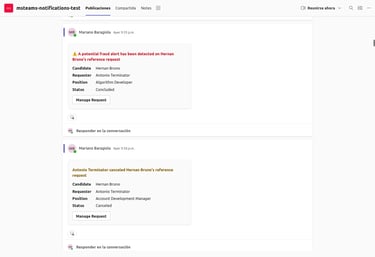
Receive notifications when a reference request changes its status.
Click the toggle switch so that it turns green to activate these notifications. Afterward, navigate to Organization Settings > Request Settings to configure your 360 notifications.
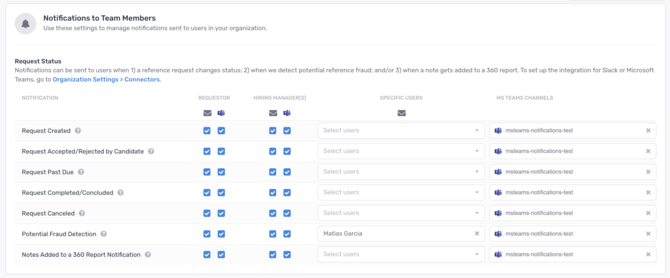
Within Request Settings settings is a section called Notifications to Team Members. MS Teams notifications can be enabled for any of the listed 360 events.
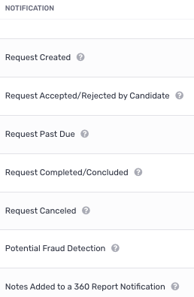
For each event, a direct message can be delivered to the Requestor and/or the Hiring Manager of the 360 request.
Enabling MS Teams for Crosschq Recruit
To enable Recruit Alerts on MS Teams, scroll down to the "Get recruit alerts on MS Teams" section and toggle the slider on.

Once enabled, navigate to the Crosschq Recruit app. From there, set your search terms and create a Crosschq alert for Recruit by clicking the "Create Alert" option.

Within the alert settings, select the MS Teams option and type the channel in which you want to receive notifications.
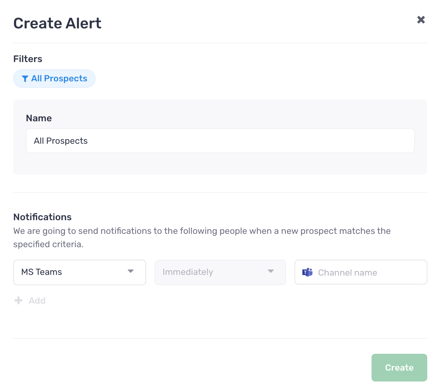
When typing the channel, a send icon will show up. 
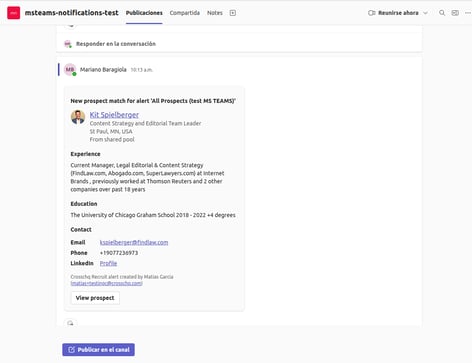
Finally, all of your Crosschq Recruit alerts will appear in your MS Teams channel so you can act quickly on potential new talent. Recruit alerts will look like this:

360 report sharing
Once the MS Teams integration is connected, you will also have the ability to share completed Crosschq 360 reports to individual MS Teams users.
From a Crosschq report, click on the Share button.
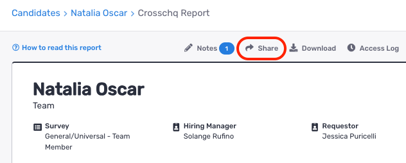
A new window will appear. Toggle to the MS Teams tab, and under the Share via MS Teams field, enter a MS Teams user in your org.
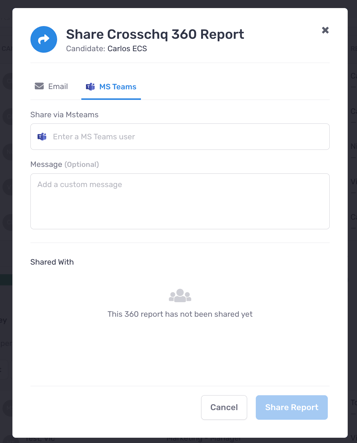
The recipient will be added to the list of users who can access the report.
Afterward, click Share Report to trigger a MS Teams notification to the user.
Insights dashboard and chart distribution
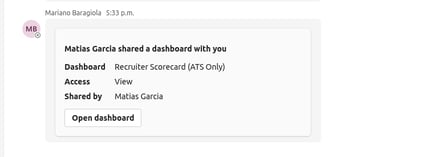
The MS Teams integration allows you to send dashboards and charts as images to other MS Teams users.
From either a dashboard or an individual chart, you can click the Share button and select the Send a Copy option.
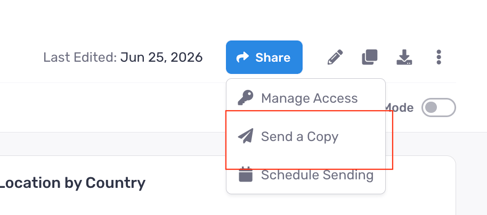
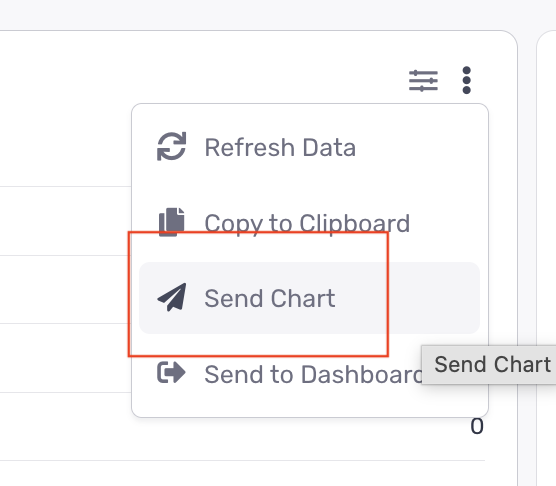
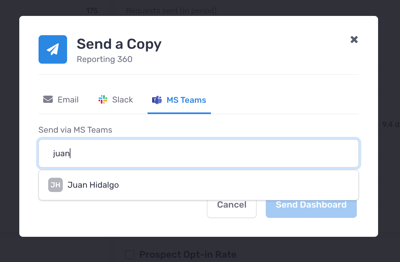
Afterward, a pop up will appear where you can toggle to a MS Teams tab to enter a MS Teams user to receive this content. A dashboard will be sent as a PDF, and a chart will be sent as a PNG.
For more information or if you have additional questions, email support@crosschq.com. As a reference, here is our privacy policy.