![Crosschq Logo 534x115.png]](https://support.crosschq.com/hs-fs/hubfs/Crosschq%20Logo%20534x115.png?height=40&name=Crosschq%20Logo%20534x115.png)
Identity Verification allows your team to confirm a candidate's identity before extending an offer. Crosschq partners with ID.me to make this process quick and secure — candidates typically complete it in just a few minutes.
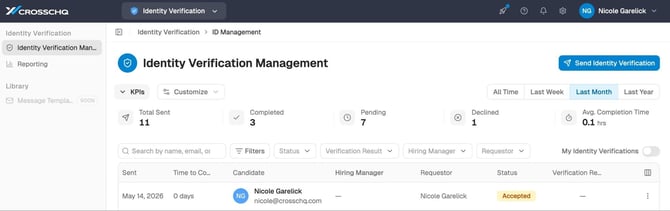
To get started, navigate to Identity Verification in the left sidebar and select Identity Verification Management.
Sending a Verification Request
- From the Identity Verification Management page, click the Send Identity Verification button in the top right corner.
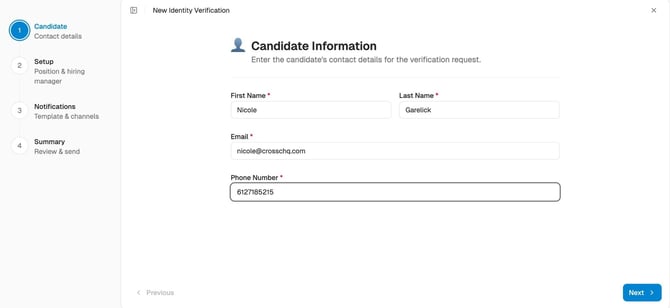
- Enter the candidate's First Name, Last Name, Email, and Phone Number, then click Next.
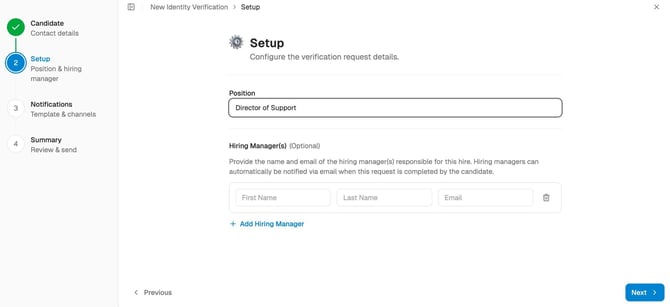
- Optionally, add the Position the candidate is applying for. You can also add one or more hiring managers — enter their first name, last name, and email, then click + Add Hiring Manager to add more. Hiring managers will be notified by email when the candidate completes verification. Click Next when you're done.
- On the Notifications step, choose how the candidate should be contacted. Send via Email is checked by default. Check Send via SMS if you'd also like to send a text message. Click Next.
Note: Custom message templates are coming soon. For now, candidates receive Crosschq's default invitation message.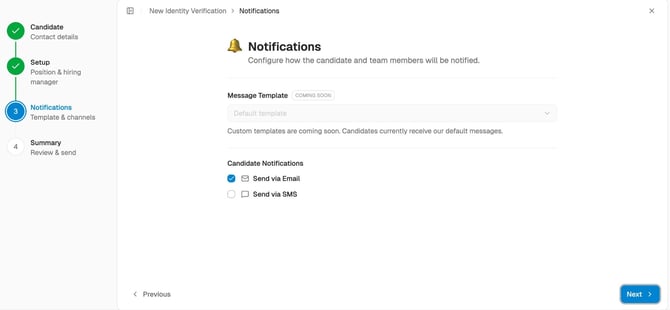
- Review the request details on the Summary screen, then click Send. The candidate will receive an invitation right away.
What the Candidate Sees
Once you send the request, the candidate receives an email from Crosschq on behalf of your organization. The email includes a Verify with ID.me button that takes them through the verification process — they'll scan a government-issued ID, take a selfie, and confirm their details.
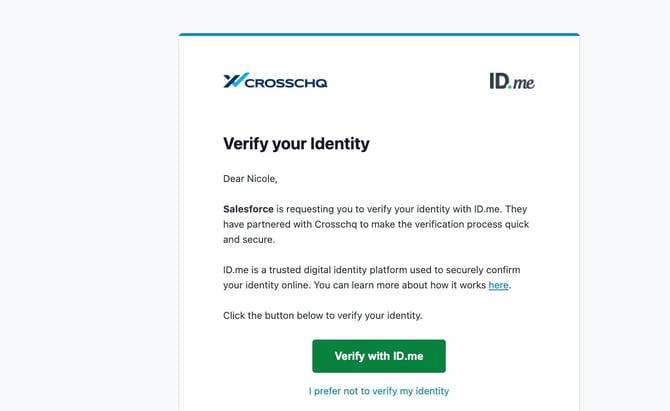
If the candidate doesn't want to verify, they can click I prefer not to verify my identity at the bottom of the email. They'll be asked to select a reason, and the request will move to Declined.
If a candidate starts the process but doesn't finish, the original link stays active so they can come back and try again.
Tracking Requests
All verification requests appear in the Identity Verification Management table. You can search by candidate name or email, and filter by Status, Verification Result, Hiring Manager, or Requestor. Toggle My Identity Verifications to see only the requests you've sent.
The KPI tiles at the top of the page show a summary of Total Sent, Completed, Pending, and Declined requests for your selected time range. Use the All Time / Last Week / Last Month / Last Year buttons to adjust the window.
Request statuses
- Sent — Invitation delivered; candidate hasn't opened it yet.
- Accepted — Candidate clicked the link.
- In Progress — Candidate is working through verification.
- Completed — Verification is done and a report has been generated.
- Declined — Candidate chose not to verify.
- Canceled — A team member canceled the request.
- Auto-Canceled — The request was automatically canceled after the set number of inactive days.
Verification results
Once a request is Completed, it will show one of these results:
- Verified — The candidate's name matches their ID.
- Flagged — Verification completed, but the name on file doesn't quite match the name on their ID. Click into the request to see both names side-by-side and a similarity score. Your team decides how to proceed.
- Not Verified — ID.me was not able to verify the candidate.
Reviewing a Request
Click any row in the table to open the request detail panel. From here you can:
- See the verification result and, if flagged, compare the names side-by-side
- Download a PDF report of the completed verification
- Copy the verification link to resend it manually (available while the request is still active)
- Cancel the request
- View the full access log
- Add internal notes
Adding notes
Use the Notes button in the detail panel to leave internal comments on a request. Notes are only visible to your team — candidates never see them. Each note includes a Send notification checkbox (on by default) that emails the original requestor and any hiring managers on the request.
A red dot on the Notes button means there are unread notes from a teammate. Opening the drawer marks them as read for you.
Downloading a Report
Once a request is Completed, click Download Report in the detail panel to save a PDF. The report includes the verification result, candidate details, position, requestor, hiring managers, and a timestamp.
Settings
Admins can manage Identity Verification settings at org.crosschq.com → Settings → Identity Verification → General Settings.
Candidate notifications
Choose whether candidates are notified by email, SMS, or both. Email is on by default; SMS is off by default.
Reminders
Set how often Crosschq sends a reminder to candidates who haven't completed their verification. Set this to 0 to turn reminders off.
Team notifications
Control which team members receive email notifications for each event — including when a request is sent, accepted, declined, completed, or canceled. Requestors and hiring managers each have their own toggles, so you can customize exactly who gets notified and when.
Auto-cancel
Automatically cancel any requests that have been sitting open for a set number of days. This helps keep your dashboard clean and ensures old requests don't stay open indefinitely.
Common Questions
What if the candidate's name doesn't match their ID?
The request will complete as Flagged. Open the request to see both names and a similarity score, then decide as a team whether to move forward.
Can a candidate try again after declining?
If they opted out during the ID.me step (but didn't fully decline), the original link is still active and they can retry. If they clicked "I prefer not to verify my identity," the request is Declined and a new request would need to be sent.
How long does the verification link stay active?
7 days. After that, your org's auto-cancel setting takes over.
Can anyone in my org see the notes I leave?
Yes — notes are visible to all team members with access to that request. Candidates never see them.
Where is the candidate's identity data stored?
ID.me holds the underlying documents. Crosschq only stores the verified result — name, email, birth date, phone, and postal code.