![Crosschq Logo 534x115.png]](https://support.crosschq.com/hs-fs/hubfs/Crosschq%20Logo%20534x115.png?height=40&name=Crosschq%20Logo%20534x115.png)
Follow the steps below to connect Greenhouse with Crosschq:
Enable the Greenhouse integration
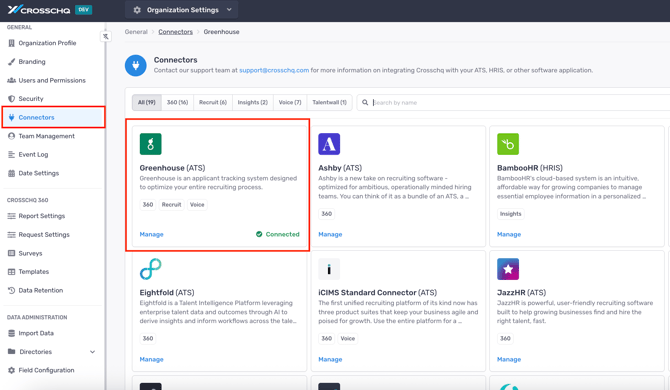
Login to your Crosschq administrator account, then click Organization Settings > Connectors item on the menu. Locate the Greenhouse listing in the main panel, then click the Manage button.
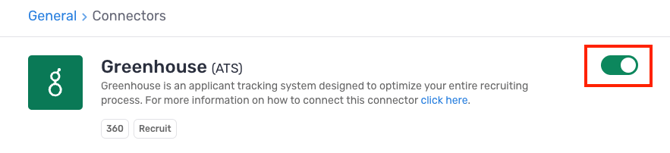
On the next page, turn on the Greenhouse connector by clicking the toggle on the right. The toggle should turn green.
Connect Greenhouse via OAuth
This connection must be completed by a Greenhouse Site Admin. You must have admin access to your Crosschq account to complete this step.
- Navigate to Organization Settings > Connectors > Greenhouse and click Manage.
- In the API Settings section, click the Greenhouse button to start the OAuth authorization process.
- You will be redirected to the Greenhouse authorization screen. Enter your Greenhouse account email and click Log in to Greenhouse.
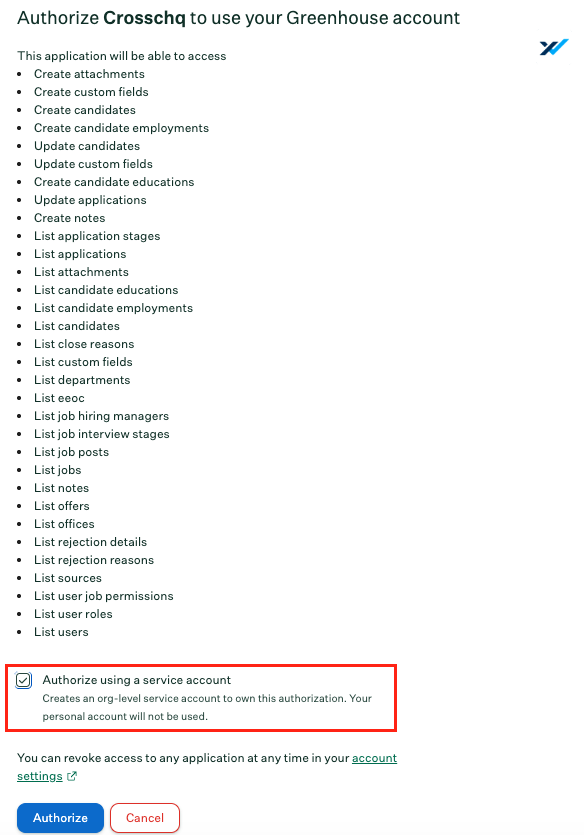
- Review the permissions requested by Crosschq. Before clicking Authorize, make sure to check the Authorize using a service account checkbox. This creates an org-level service account to own the authorization, ensuring data is accessible to all users in your organization.
If the Authorize using a service account checkbox does not appear, the logged-in Greenhouse user does not have Site Admin permissions. The authorization must be completed by a Greenhouse Site Admin — otherwise no data will be available in Crosschq.
Click Authorize.
Once authorization is complete, Crosschq will confirm the connection. If you need to adjust connector settings at any point, return to Organization Settings > Connectors > Greenhouse and click Manage.
Share token with Greenhouse
A Crosschq token is stored within the Greenhouse API settings. Copy the token.
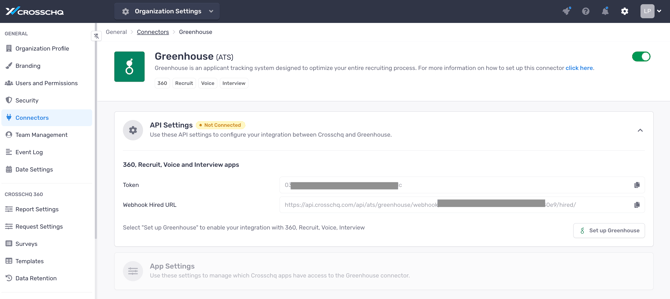
Once you have obtained your API token, contact Greenhouse Technical Support by using live chat or opening a ticket. They will send a Safely link where you can securely share the token. Their support team will connect the two platforms to one another.
Configure app settings
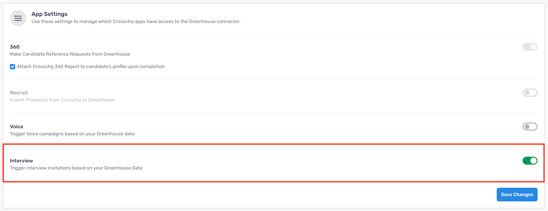
Once your API settings are saved, you can configure additional settings for specific Crosschq Apps.
Enable the Interview toggle. The toggle should turn green.
Additional configuration
The following sections will outline extra steps to make sure your Greenhouse connection is successfully linked.
Add Crosschq Interview Agent as a stage in an interview plan
Once your Greenhouse connector is configured in Crosschq, create a new job in Greenhouse and add the Crosschq Interview Agent as a stage in your interview plan.
You can also add the Interview Agent stage to an existing job by opening the job and navigating to the Job Setup section.
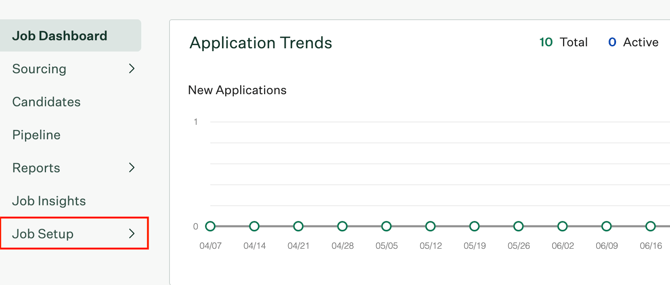
Locate the Interview Plan and click Edit.

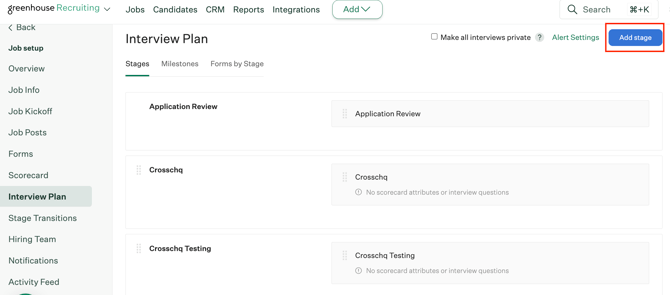
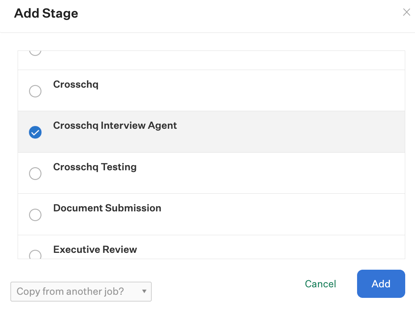
Click Add Stage, select Crosschq Interview Agent from the list, and then click Add to confirm.
Create Interview Agents based on the existing jobs in Greenhouse
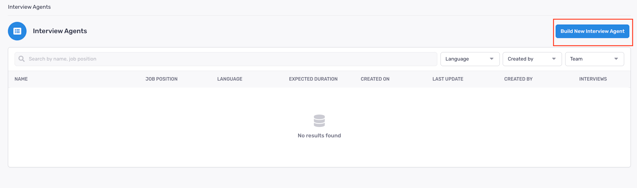
Within Crosschq, access the Interview Agents section. Click Build New Interview Agent.
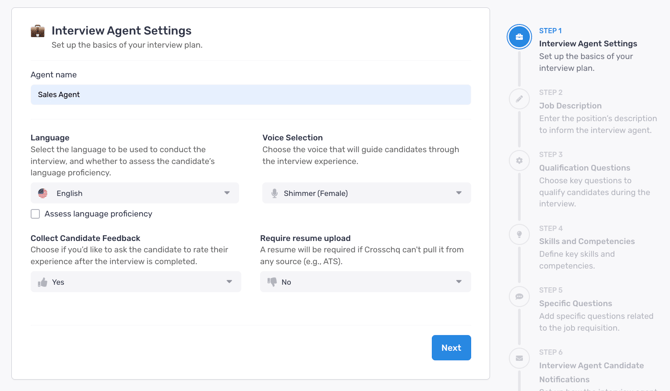
Complete your Agent settings and click Next.
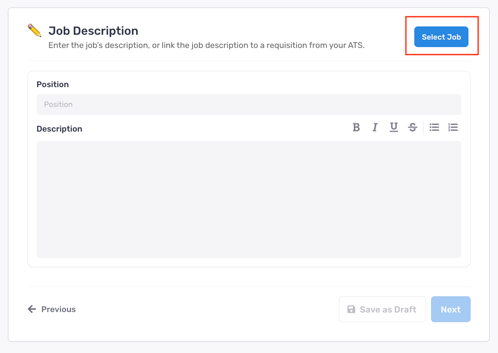
 On the next page, click Select Job. A list with your existing Jobs in Greenhouse will be displayed.
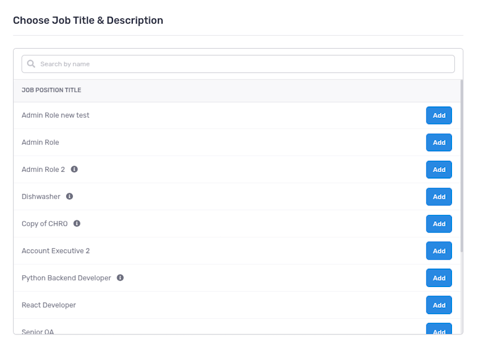
Click Add on the job you're basing your Agent on. If the job description in Greenhouse is set to public (these are the ones with an 'i' icon next to the name, as shown in the image), the position and description fields on the following page will be filled in automatically.
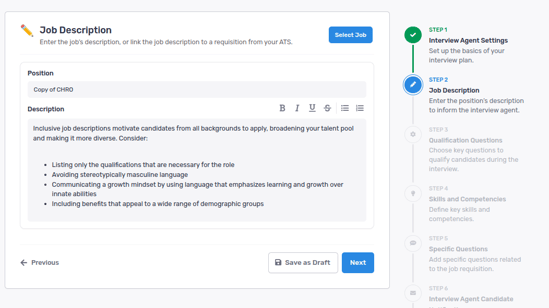
This is how the job description looks in Greenhouse:

Send a Candidate through the interview process from Greenhouse
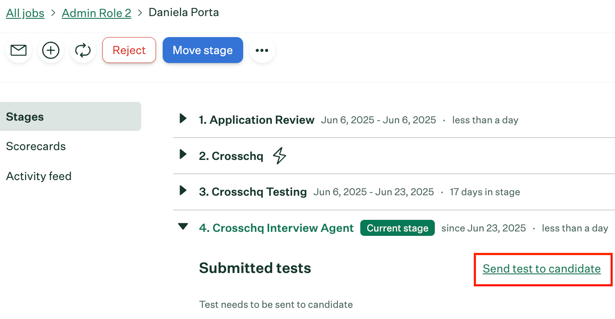
To send a Candidate through the interview process, move the candidate to the Crosschq Interview Agent stage and select Send test to candidate.
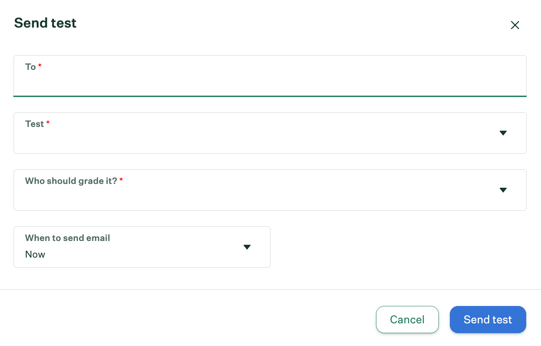
Make sure the candidate's email address is correct, select the Interview Agent in the Test line, and select whom you would like to "grade" the request/have access to notifications, usually, this is the recruiter/candidate owner. Then click the Send Test button to send the Crosschq to the candidate.
The candidate will receive an email message that includes a link to begin the Crosschq interview process.
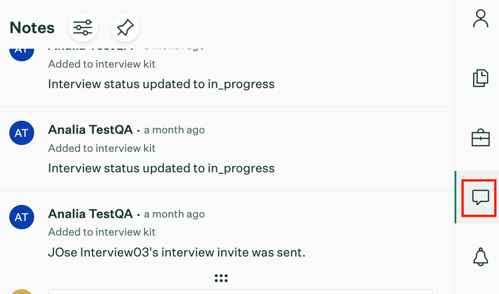
You will be able to keep track of each interview status change by accessing the notes on the Candidate:
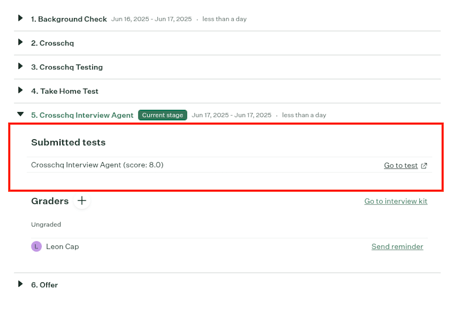
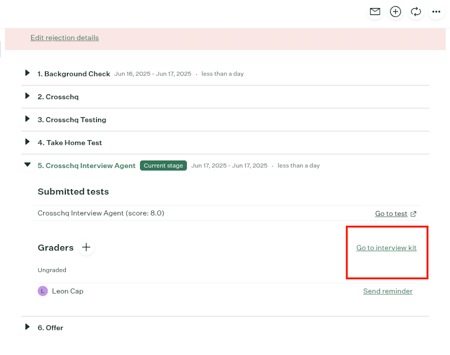
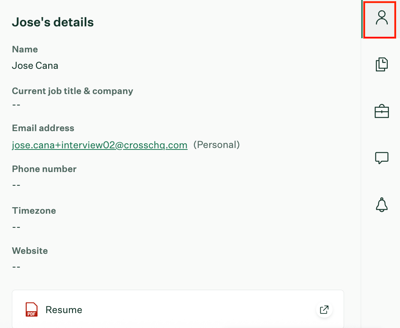
After the interview is complete, you can view all the information on the candidate’s page by clicking Go to Interview Kit or by selecting the candidate’s profile.
Automating when the interview is triggered
To automate when the interview is triggered, you’ll need to create a Stage Transition Rule in Greenhouse.
To create the rule, go to the Job where you want to add the automation. Navigate to Job Setup > Stage Transitions and click Create a Rule.
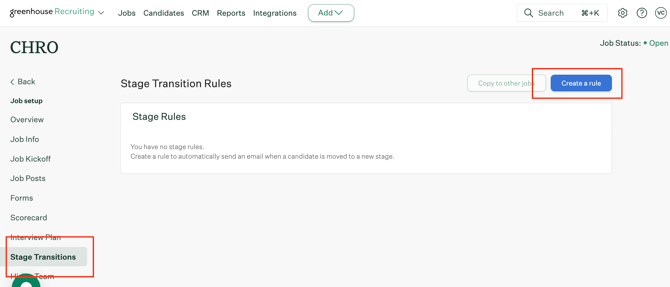
Select the stage Crosschq Interview Agent.
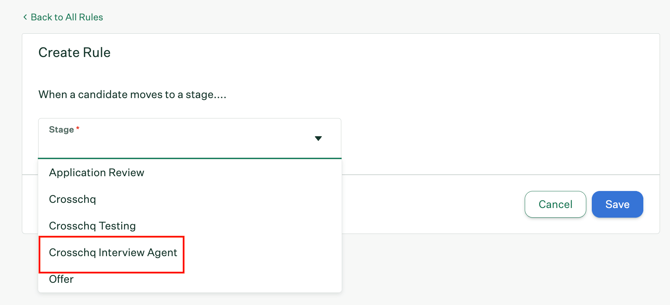
Select the action Send Take Home Test, choose the user credited for the action, and finally, choose to send Immediately.
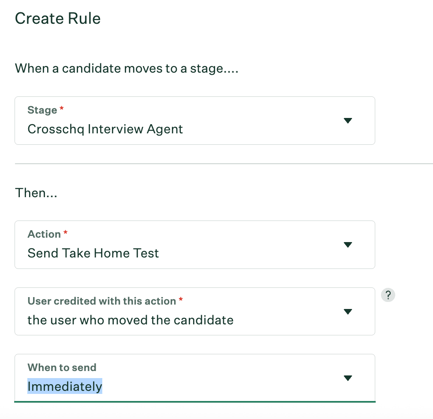
Next, you'll need to configure the correct Interview Agent that is associated with this stage transition and job requisition.

Select the correct agent for the job requisition from the drop-down menu and save.

Next, scroll down and choose who should grade this test and click save.
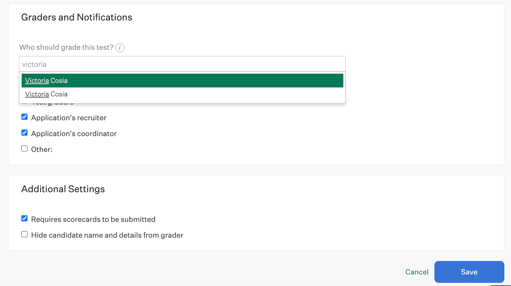
Finally, reconfigure the stage transition one more time and save.
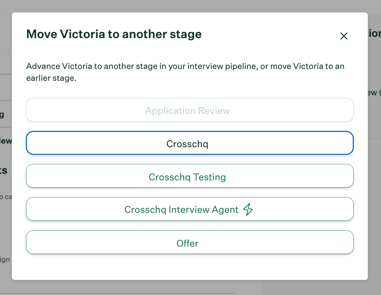
The stage will now have a lighting symbol to indicate the automation.
Viewing an interview Report
To access the interview report on Crosschq, click Go to test on the candidate's page.