![Crosschq Logo 534x115.png]](https://support.crosschq.com/hs-fs/hubfs/Crosschq%20Logo%20534x115.png?height=40&name=Crosschq%20Logo%20534x115.png)
-
Follow the steps below to connect iCIMS with Crosschq:
Enable the iCIMS integration
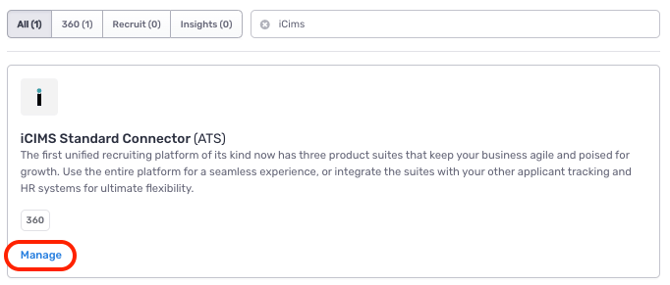
Search for the iCIMS connector from Organization Settings > Connectors. Click Manage from the iCIMS section
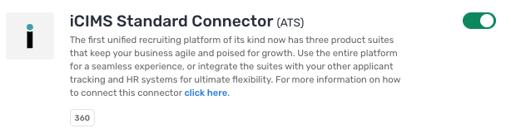
On the next page, turn on the iCIMS connector by clicking the toggle on the right. The toggle should turn green.
Configure API settings
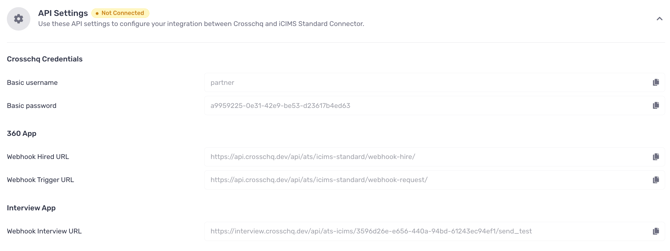
To connect iCIMS with Crosschq, reach out to iCIMS support as they will provide the Customer ID, Client ID, and Client Secret. Enter these values within the API settings section, select the Region, and click Save Changes.

Next, share with iCIMS your Crosschq credentials: basic username and password, along with the Webhook Interview URL. These details are necessary for authentication and you can find them in the API settings section within Crosschq. Make sure to inform them that you want to connect to Crosschq Interview.
Configure app settings
The connector app settings should be enabled automatically after completing the API Settings from above.
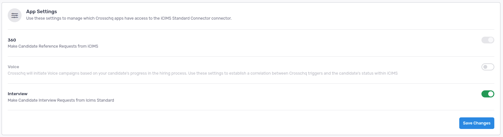
Additional Interview configuration
The following sections will outline extra steps to make sure your iCIMS connection is successfully linked.
Interview Agent settings
Within Crosschq, access the Interview Agents section. Click Build New Interview Agent.
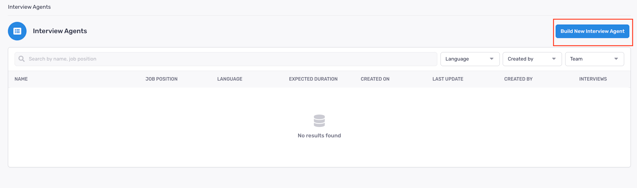
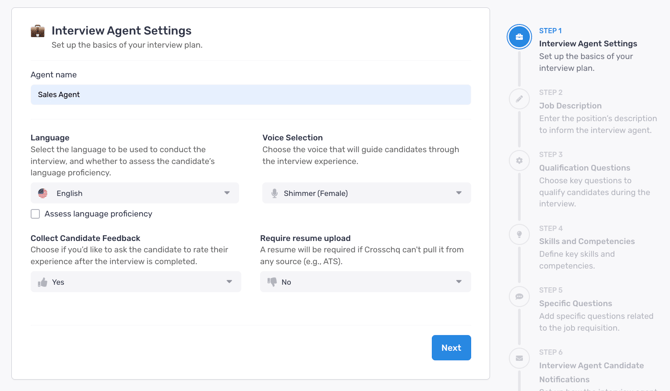
Complete your Agent settings and click Next.
On the next page, complete the Position and Job Description and click Next.
.png?width=670&height=303&name=unnamed%20(2).png)
In the next page, review and edit qualifying questions.
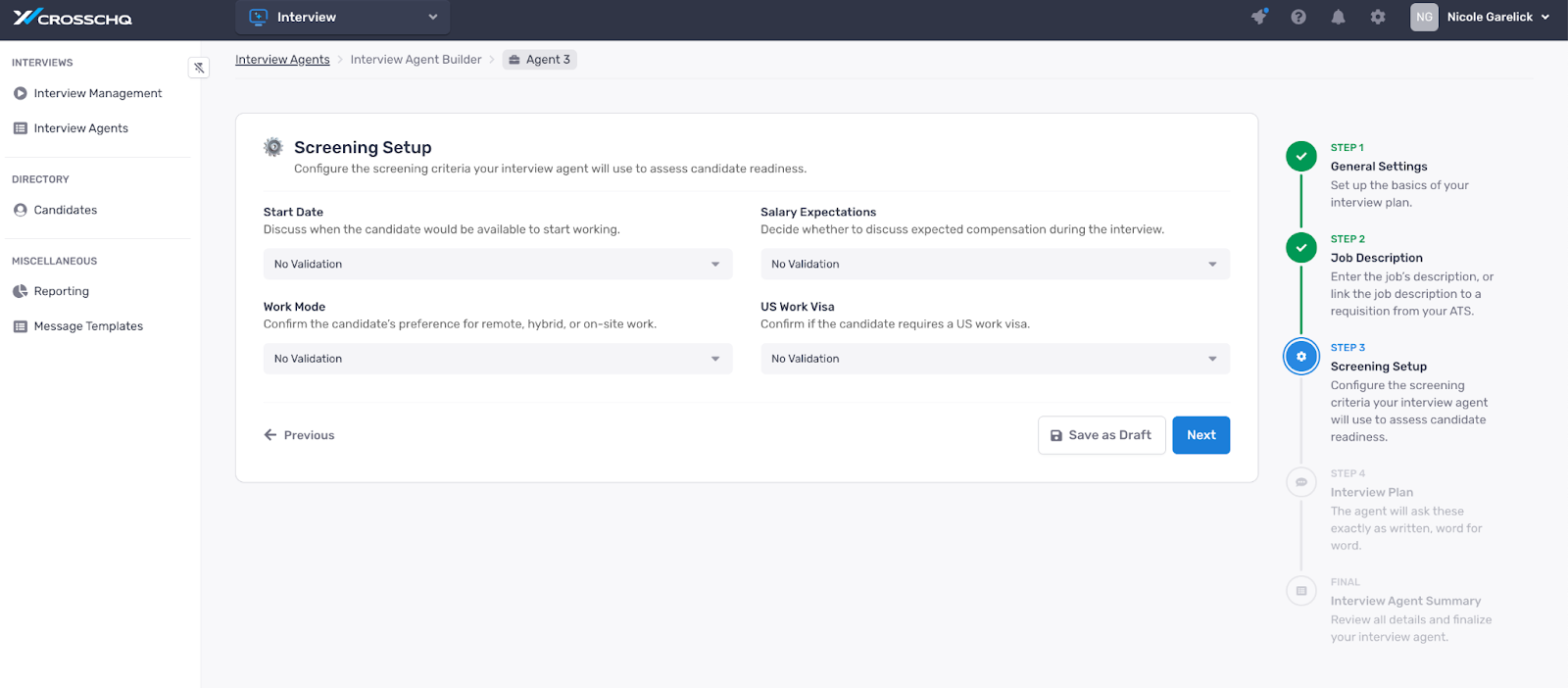
Finally, refine the interview plan, review the agent and click Create Interview Agent.
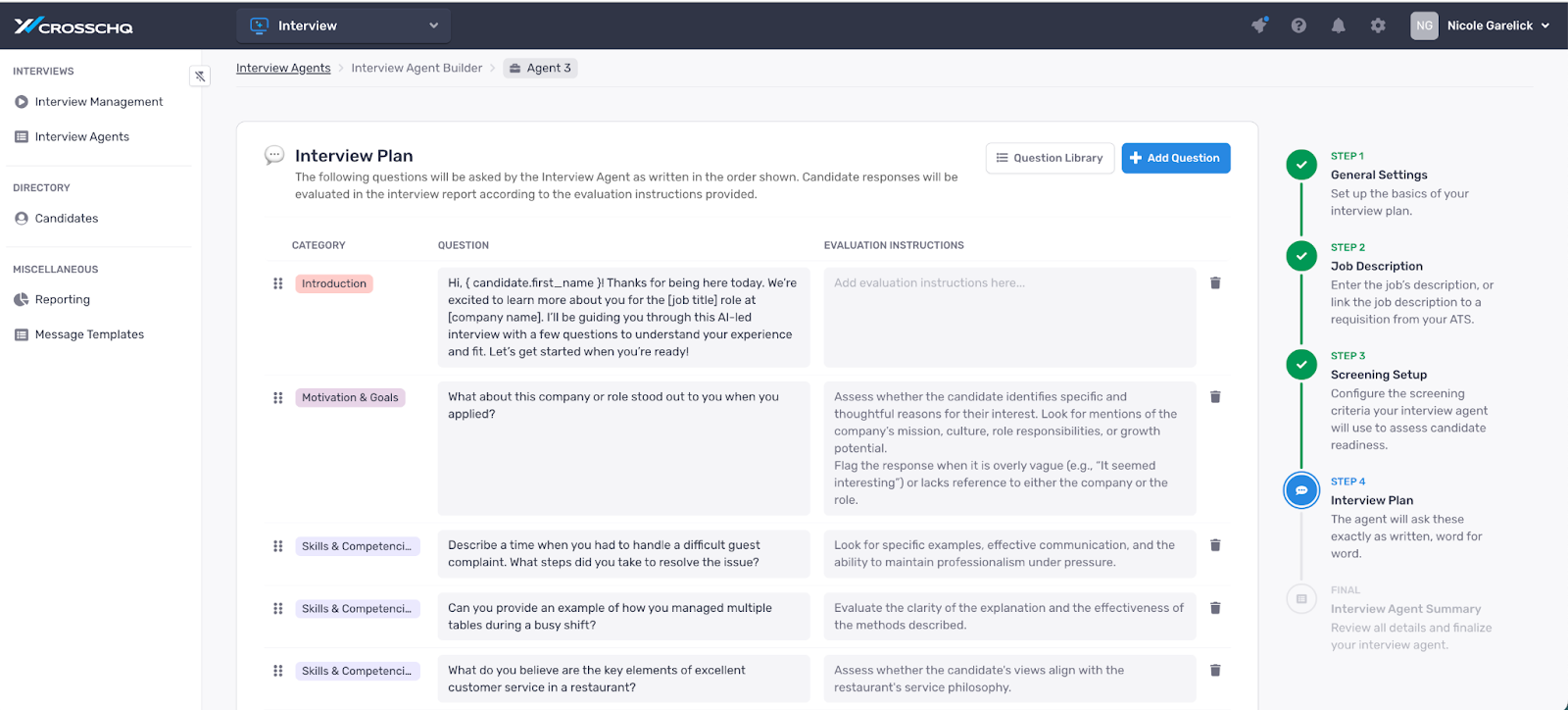
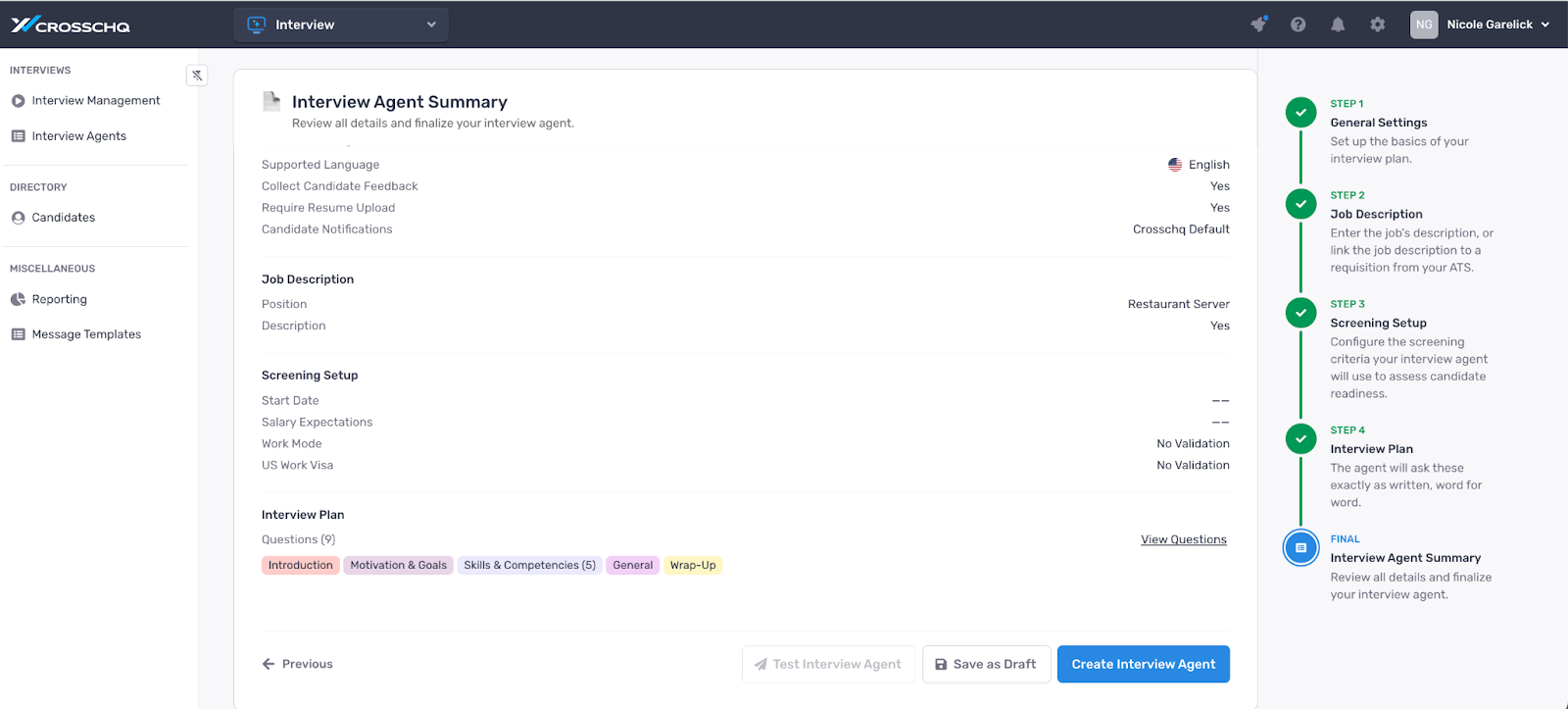
Interview Plans will be synchronized with the Video Interviewing Package of the Job Model and will carry the prefix 'Interview-'
Set up connector in iCIMS
In iCIMS, go to the job requisition. After configuring your Agents in Crosschq, proceed to designate the specific agents for distribution corresponding to each job description. In the screening section, carefully choose the agent you intend to dispatch from Crosschq by selecting their name. Then be sure to add it to the job requisition and select save.
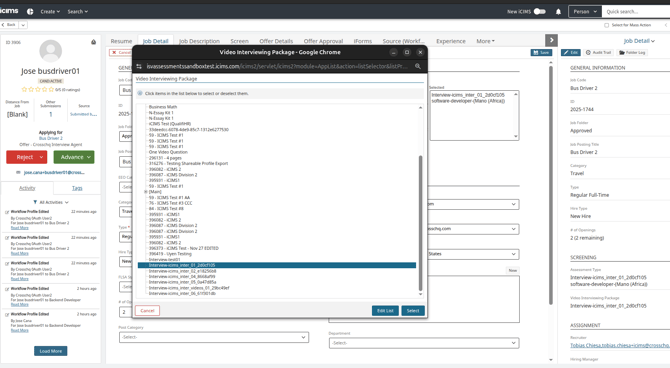
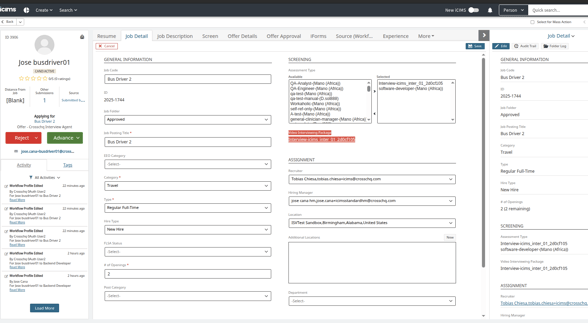
Within the workflow, you will want to select assign candidate to the Crosschq Interview Agent stage. You will want to repeat this for all desired job requisitions so they have the Crosschq Interview Agent stage. Then you will need to reach out to the iCIMS team to help you build out the Crosschq status to reflect the updates throughout the process.
- For Interview -> Crosschq Interview Agent
Please reach out to support@crosschq.com if you don't have a direct contact at iCIMS, but you should have one assigned.
Sending an Interview from iCIMS
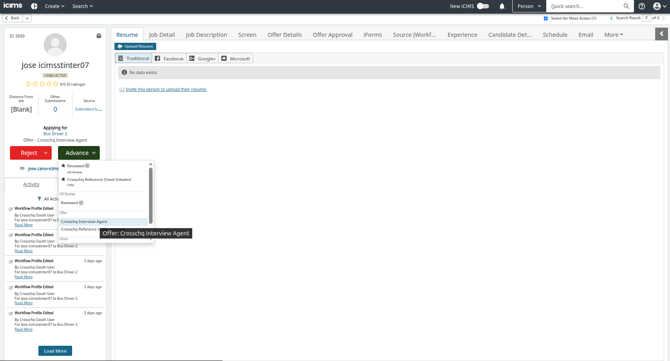
As applicants apply, they will be brought into the workflow and can be advanced accordingly as per the usual process. When you identify a person you would like to take an interview using Crosschq Interview Agent, you can advance them to the status of Crosschq Interview Agent within the candidate page.
Once the applicant has been routed through the connector, they will receive an email from Crosschq with the link to the interview.
Alternatively, candidates can be moved to the Interview Agent stage directly from the job’s page, which allows you to send multiple candidates to the interview stage in bulk.
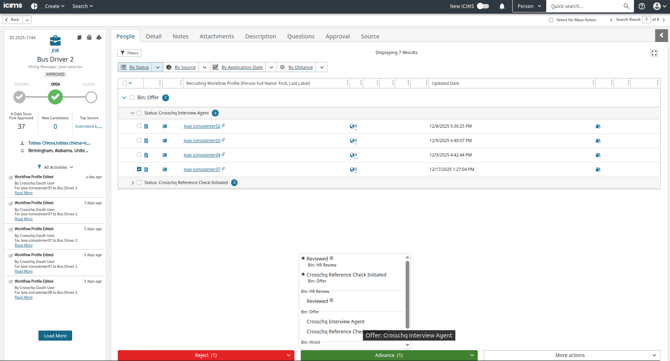
As the applicant completes this part of the process, Crosschq will update their iCIMS profile with the appropriate status.
Viewing an interview Report
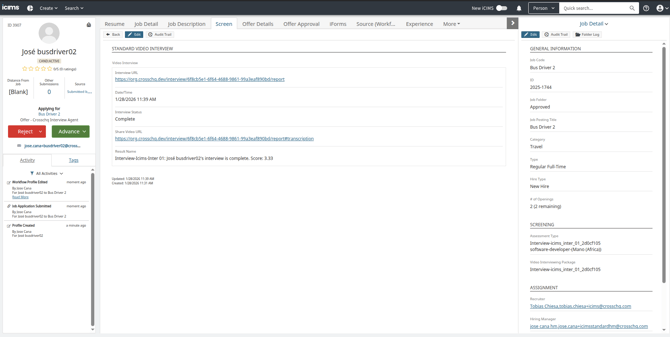
The Crosschq report will be available on the Screen tab of the Recruiting Workflow profile. Click the link to access the full Crosschq report.