![Crosschq Logo 534x115.png]](https://support.crosschq.com/hs-fs/hubfs/Crosschq%20Logo%20534x115.png?height=40&name=Crosschq%20Logo%20534x115.png)
Overview
The IP Allow/Block List is an opt-in security setting that controls which IP addresses or ranges can access your Crosschq organization. When enabled, access is enforced at login — users whose IP does not meet the configured rules will be blocked and shown a message directing them to contact their org admin.
The setting is self-service and managed by your organization's admin in Organization Settings > Security. No request to Crosschq is needed to enable or configure it.
IP restriction only applies to your organization's users. Candidates are never restricted, regardless of this setting.
Allow list vs. Block list
IP restriction operates in one of two mutually exclusive modes. You can only run one mode at a time.
Setting up IP restriction
- Navigate to Organization Settings > Security.
- Select either the Allow list or Block list tab, depending on which mode fits your needs.
- Add the IP addresses or CIDR ranges you want to include. Both individual IPs and ranges are supported, up to 100 entries per list.
- Enable the toggle to activate the restriction.
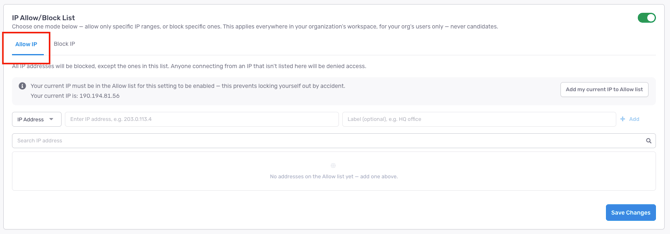
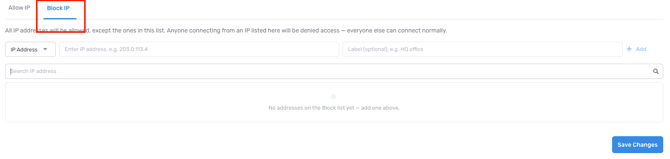
Before enabling: If you are using Allow list mode, make sure your current IP address is included in the list — otherwise you will be locked out immediately. The panel includes a self-lockout guard that warns you if your current IP is not on the Allow list before you save.
How it works
Once enabled, IP restriction is enforced at SSO login. If a user's IP address does not meet the configured rules, they will see a message letting them know they are connecting from a non-allowed address and directing them to contact their org admin.
Important considerations
- Organization-level only. This setting applies to your entire organization. It cannot be configured separately per team.
- Candidates are never affected. IP restriction does not apply to candidates, even when enabled for your organization.
- The two modes are mutually exclusive. You can only run Allow list or Block list at a time, not both simultaneously.
- 100-entry limit. Each list supports up to 100 individual IPs or CIDR ranges.
- Changing your IP list. If your office IP addresses or VPN ranges change, update the list before the change takes effect to avoid locking out your users.
- Disabling the restriction. You can turn the restriction off at any time by disabling the toggle in Organization Settings > Security.
- Locked out of your account? Contact support@crosschq.com for assistance.