![Crosschq Logo 534x115.png]](https://support.crosschq.com/hs-fs/hubfs/Crosschq%20Logo%20534x115.png?height=40&name=Crosschq%20Logo%20534x115.png)
Opening a report
Reports are available for any completed interview. To open one, go to Interview Management, find the interview you want to review, and click the clipboard icon to open the report.
Report layout
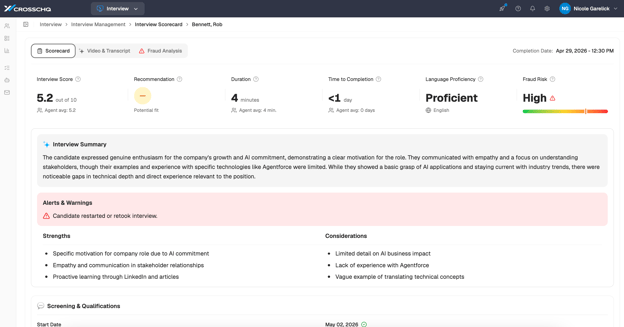
Every Interview Report is structured the same way from top to bottom: the report header with candidate name and toolbar actions, the overview showing key metrics, the alerts card (when alerts are present), and the tab bar for navigating between sections.
Overview
The overview gives you the most important numbers about the interview at a glance — overall score, recommendation, duration, time to completion, fraud risk, and language proficiency (when enabled). Each metric also shows the agent average so you can quickly benchmark the candidate against others.
Alerts card
When something needs your attention before reviewing the scores, an alerts card appears between the interview summary, and the remaining scorecard. The card is hidden automatically when there are no alerts.
Each alert displays a severity badge — Warning for items that may need follow-up, and Threat for flags that require immediate attention. Hover over any alert to see a tooltip with additional context.
Alerts are grouped into three categories:
Candidate Behavior
| Alert | Tooltip | Severity |
|---|---|---|
| Candidate switched languages during the interview. | Candidate attempted to use a different language during the interview (unusual behavior). | ⚠️ Warning |
| Candidate ended the interview before normal completion. | Candidate ended the interview before completion (unusual behavior). | ⚠️ Warning |
| Candidate asked to restart the interview. | Candidate asked to restart the interview (unusual behavior). | ⚠️ Warning |
| Candidate restarted or retook interview. | Candidate exited the interview app and then retook the interview. | ⚠️ Warning |
| Candidate did not confirm the transcription. | Candidate did not confirm their interview transcription. | ⚠️ Warning |
| Candidate was rude or offensive. | Candidate displayed rude or offensive behavior during the interview. | 🚨 Threat |
| Candidate became hostile. | Candidate displayed hostile behavior during the interview. | 🚨 Threat |
Qualification Questions
| Alert | Tooltip | Severity |
|---|---|---|
| Candidate stated a salary/wage outside of the range for this position. | Candidate requested compensation above the role's approved range. | ⚠️ Warning |
| Candidate's preferred start date outside of range. | Candidate stated they were unable to start within the timeframe required for the role. | ⚠️ Warning |
| Candidate doesn't have a U.S. work visa. | Candidate doesn't have a U.S. visa. This response may affect the candidate's qualification or eligibility. | 🚨 Threat |
| Candidate indicated a need for future U.S. work visa sponsorship. | Candidate indicated they would require visa sponsorship in the future, which may affect qualification or eligibility. | ⚠️ Warning |
| Candidate does not meet a job qualification requirement. | Candidate did not meet one or more required qualifications for the role. | ⚠️ Warning |
Environment / Technical
| Alert | Tooltip | Severity |
|---|---|---|
| Candidate had a poor internet connection. | Network connectivity issues affected the interview environment or experience. | ⚠️ Warning |
| Interview session ended due to technical issues. | The interview session crashed or was aborted due to unknown technical issues. | ⚠️ Warning |
| Interview agent could not answer a candidate question. | The interview agent could not confidently respond to a candidate question. This may require a recruiter follow-up with the candidate. | ⚠️ Warning |
| Candidate reported an issue during the interview. | Candidate used the in-app report button to flag a connection, video, or audio issue. | ⚠️ Warning |
The tabs
| Tab | What it contains | When it appears |
|---|---|---|
| Scorecard | Competency ratings, questions, notes, rubric text, and AI Suggestions. | Always |
| Video & Transcript | Video player and time-stamped transcript of the interview session. | When a transcript is available (AI Agent interviews) |
| Fraud Analysis | Session-level risk score, signal groups, and gradient bar. | When fraud detection is enabled org-wide and for this interview |
Scorecard tab
The Scorecard tab is where you review the interviewer's or AI agent's ratings for each competency. An AI-generated Interview Summary appears at the top, followed by strengths and considerations, then the full competency-by-competency breakdown.
Two toggles in the tab toolbar let you customize the view:
| Toggle | What it does |
|---|---|
| Rubric | Shows or hides the rubric anchor text — the written description of what each score level means for that competency. |
| Notes | Shows or hides interviewer notes. When hidden, a count badge shows how many notes are folded away so you don't miss them. |
Toolbar actions
- Notes — Add a note to the candidate's interview record.
- Printable Version — Opens a print-friendly version in a new view.
- Share (link icon) — Copies a direct link to this report to send to a colleague.
- Export (download icon) — Downloads a formatted PDF of the full report.