![Crosschq Logo 534x115.png]](https://support.crosschq.com/hs-fs/hubfs/Crosschq%20Logo%20534x115.png?height=40&name=Crosschq%20Logo%20534x115.png)
The Traitify Assessment integration enables Workday Recruiting customers to automatically trigger personality and fit assessments for job candidates as part of the application process. When a candidate applies for a position, Workday sends a request to the Traitify platform, which delivers an assessment experience to the candidate. Upon completion, assessment results are sent back to Workday and made available to recruiters within the candidate's profile. This streamlines hiring decisions by surfacing objective, data-driven insights at the point of initial screening.
Workday secures data with a domain security model. The domains listed below grant the integration system user the minimum permissions required to trigger assessments and receive results. Customers should evaluate these permissions and confirm they align with their security policies before activating.
The following steps must be completed by the Integration Implementer in the customer's Workday tenant.
- Step 1: Verify domain security policies
- Step 2: Create system integration user
- Step 3: Create a unique integration system security group
- Step 4: Activate Pending Security Changes
- Step 5: Create integration system
- Step 6: Add "Completed" assessment status
- Step 7: Add Traitify assessment test
- Step 8: Set up a condition rule
- Step 9: Edit the external career site
- Step 10: Viewing assessment results in Workday
Prior to starting this configuration, please make sure you have been sent the following from Traitify:
- Username to be stored in integration system (step 5)
- Password to be stored in integration system (step 5)
- ID(s) to be stored in assessment test (step 7)
Step 1: Verify domain security policies
Verify that domain security policies are active for the following domains:
- Staffing Actions: Job Requisition Assessments
- Candidate Data: Assessment Results
- Integration Event
View each domain security policy.
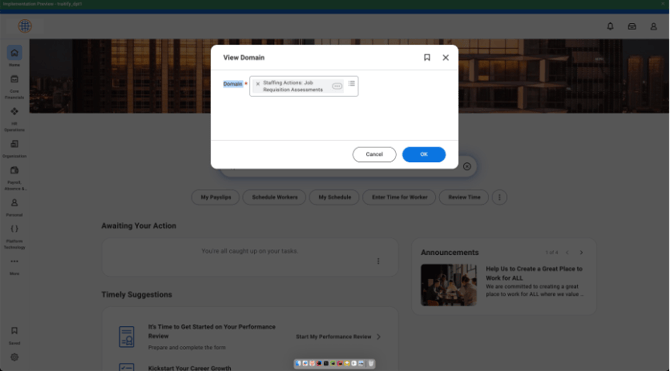
Confirm that the status of each domain security policy is set to Active.
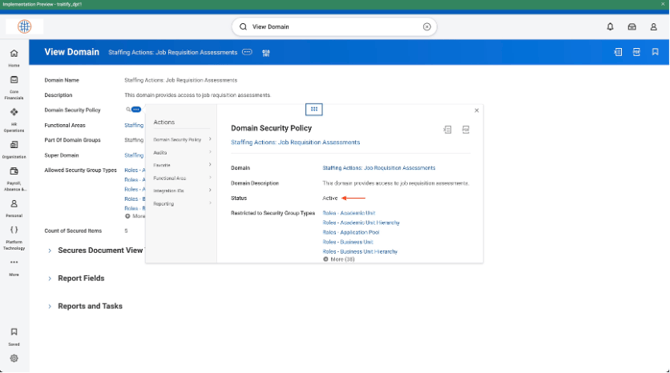
Step 2: Create system integration user
Create a dedicated Integration System User (ISU) specifically for the Traitify integration. This account must not be shared with other integrations.
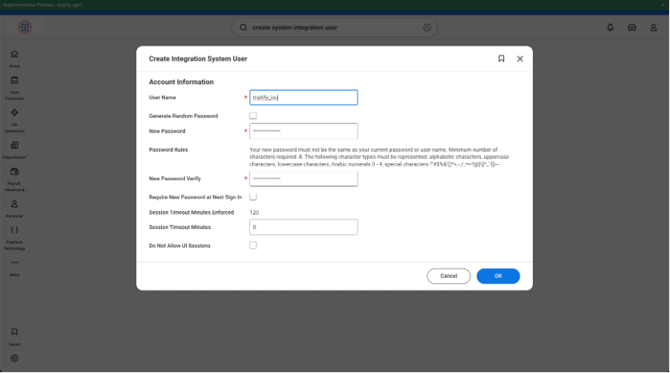
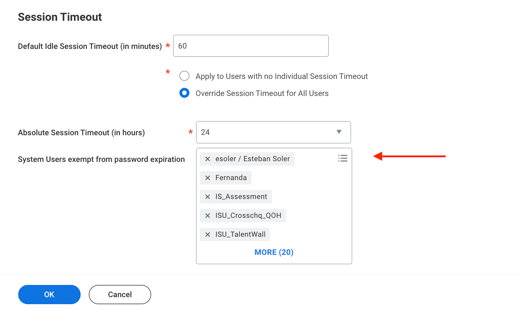
It is recommended to add this ISU to the password expiry exemption list. Under the Maintain Password Rules task, add the ISU to the setting, System Users exempt from password expiration.
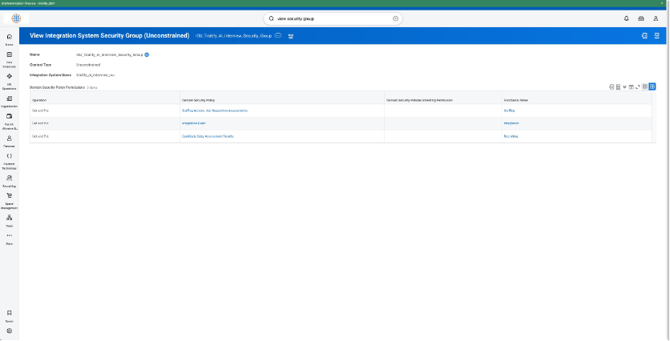
Step 3: Create a unique integration system security group
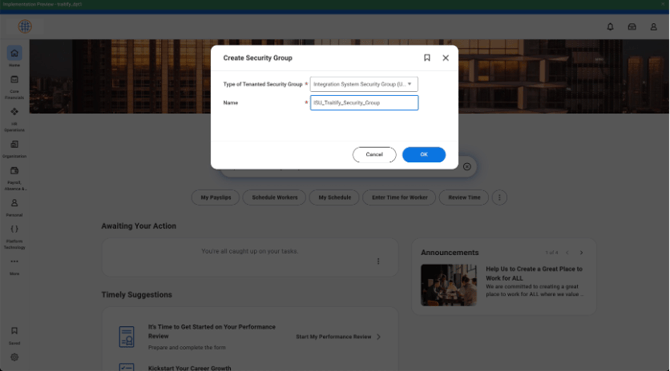
Create a dedicated Integration System Security Group (ISSG) for the Traitify integration.
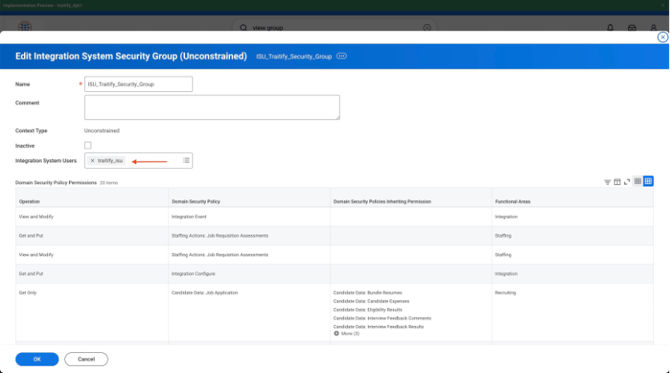
Add the ISU created in Step 2 to the ISSG created in Step 3.
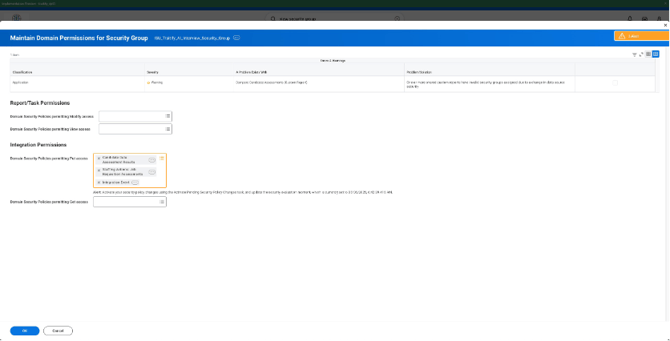
Add the following PUT domain permissions
-
Staffing Actions: Job Requisition Assessments
-
Candidate Data: Assessment Results
-
Integration Event
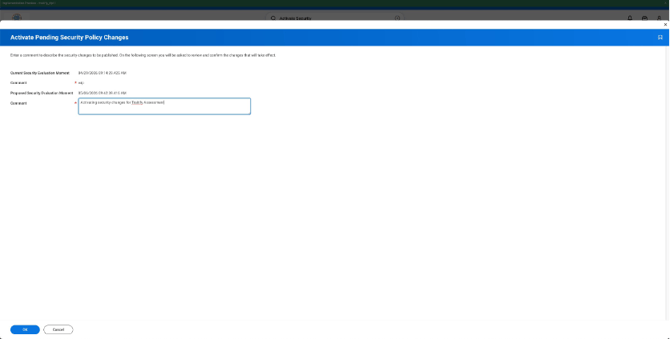
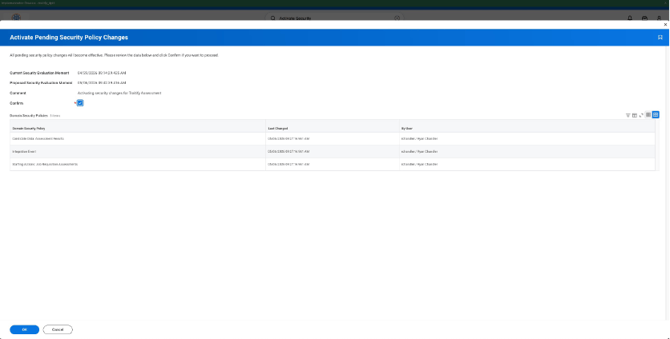
Step 4: Activate pending security changes
Activate all pending security policy changes to apply the permissions configured in Steps 1–3.
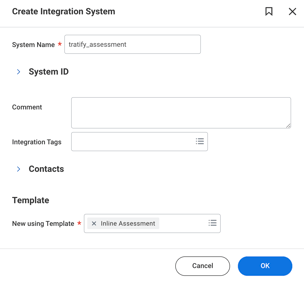
Step 5: Create integration system
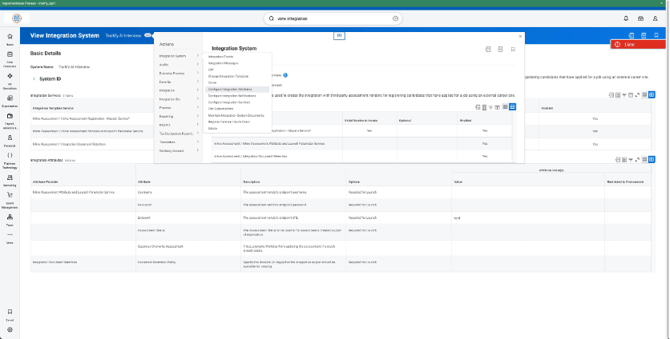
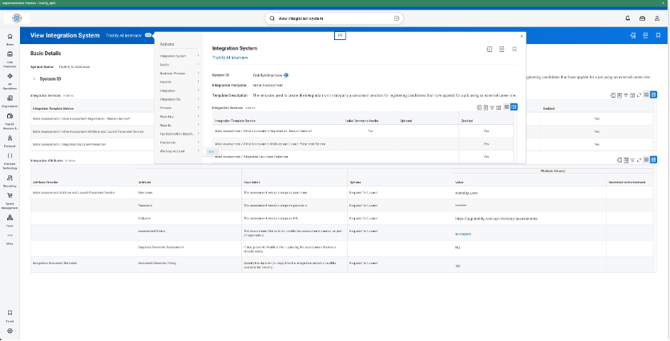
Create a new integration system using the Inline Assessment integration template.
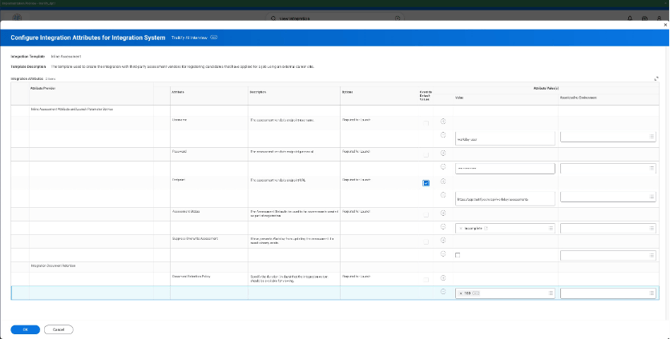
Set the following values in the integration system attributes:
-
Username → (username provided by Traitify)
-
Password → (password provided by Traitify)
-
Endpoint → https://app.traitify.com/api/workday/assessments
-
Assessment Status → Incomplete
-
Suppress Overwrite Assessment → No
-
Document Retention Policy → (your choice)
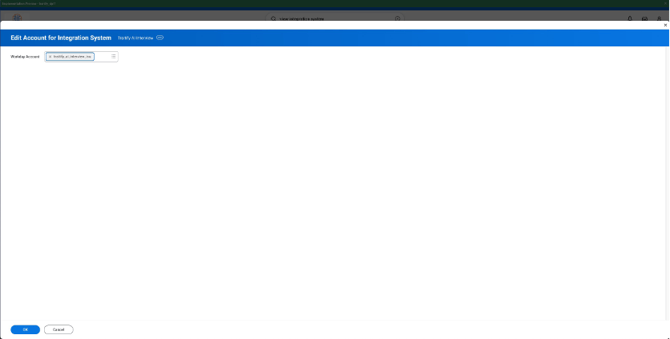
Associate the Integration System User created in Step 2 with the integration system's Workday account.
Step 6: Add "Completed" assessment status
Add a "Completed" assessment status to ensure that completed Traitify assessments are properly reflected in Workday.
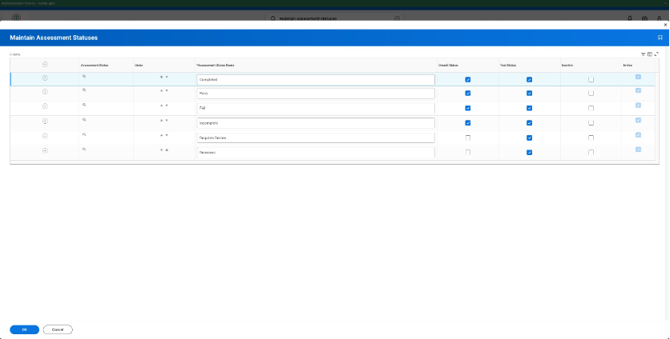
Set the reference ID to Completed.
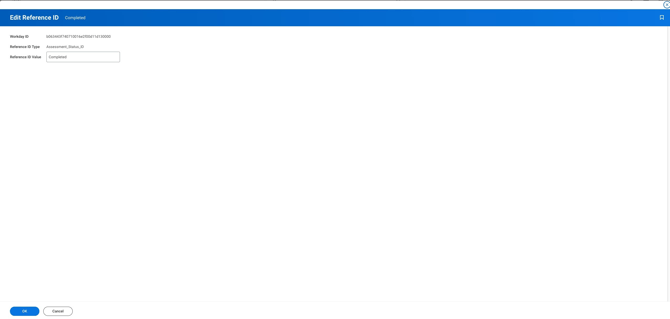
Step 7: Add Traitify assessment test
Add the Traitify assessment as an assessment test in Workday.
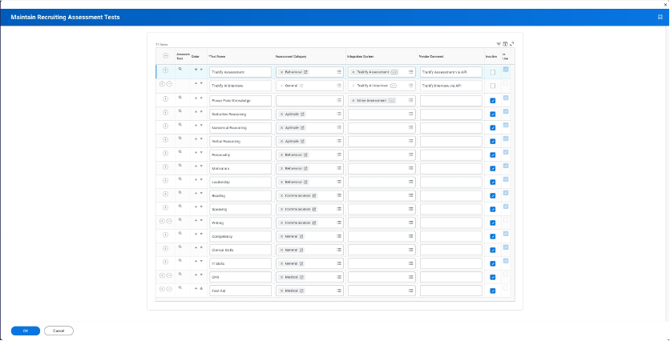
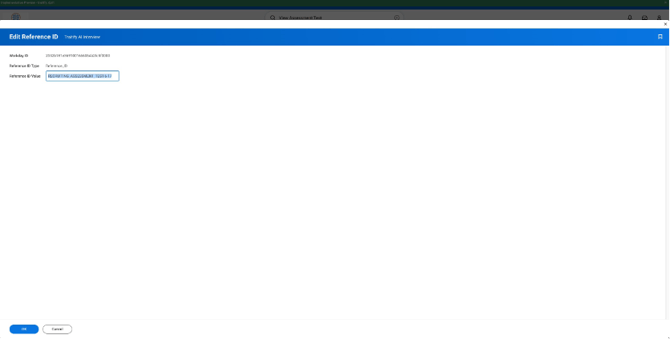
Set the reference ID for the Traitify assessment test. This ID is provided by Traitify and links the Workday assessment record to the correct Traitify assessment package.
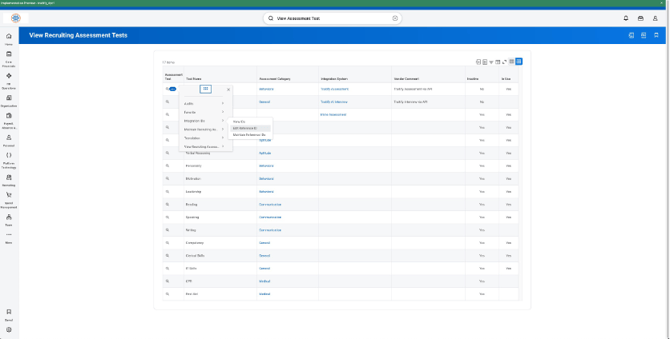
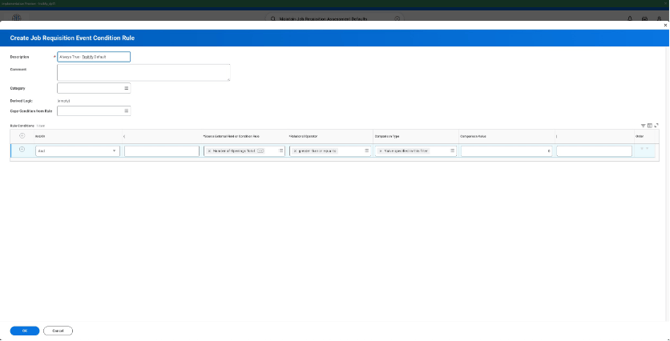
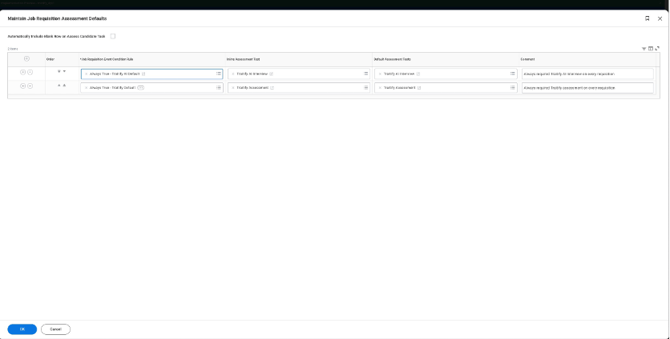
Step 8: Set up a condition rule
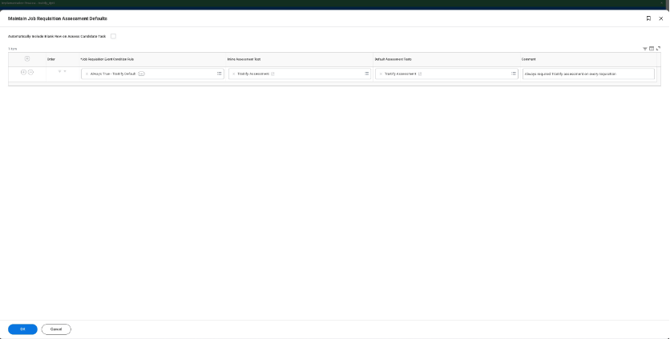
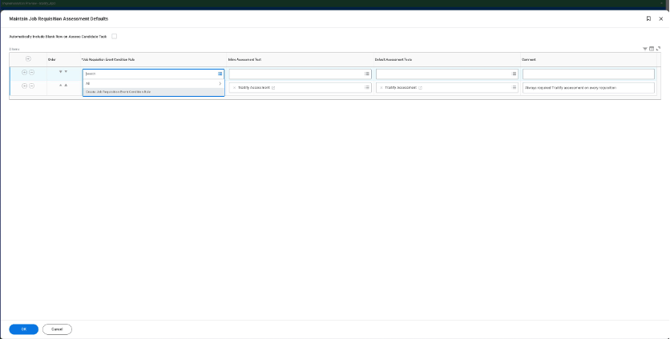
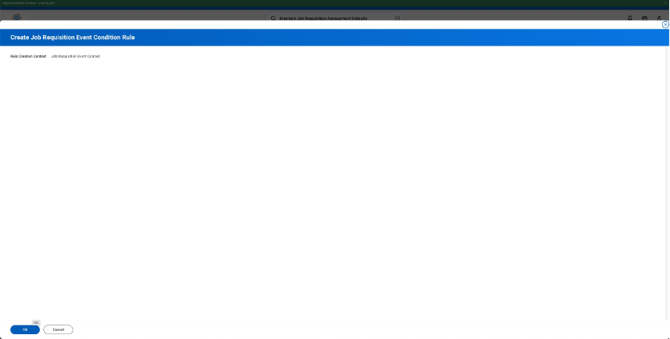
Set up a condition rule to specify which job requisitions should have a Traitify assessment enabled. This allows customers to control which positions trigger the assessment workflow (e.g., by job family, job profile, or other requisition criteria).
The condition rule will only apply to new requisitions. Existing requisitions should be closed and re-added in order to trigger the assessment.
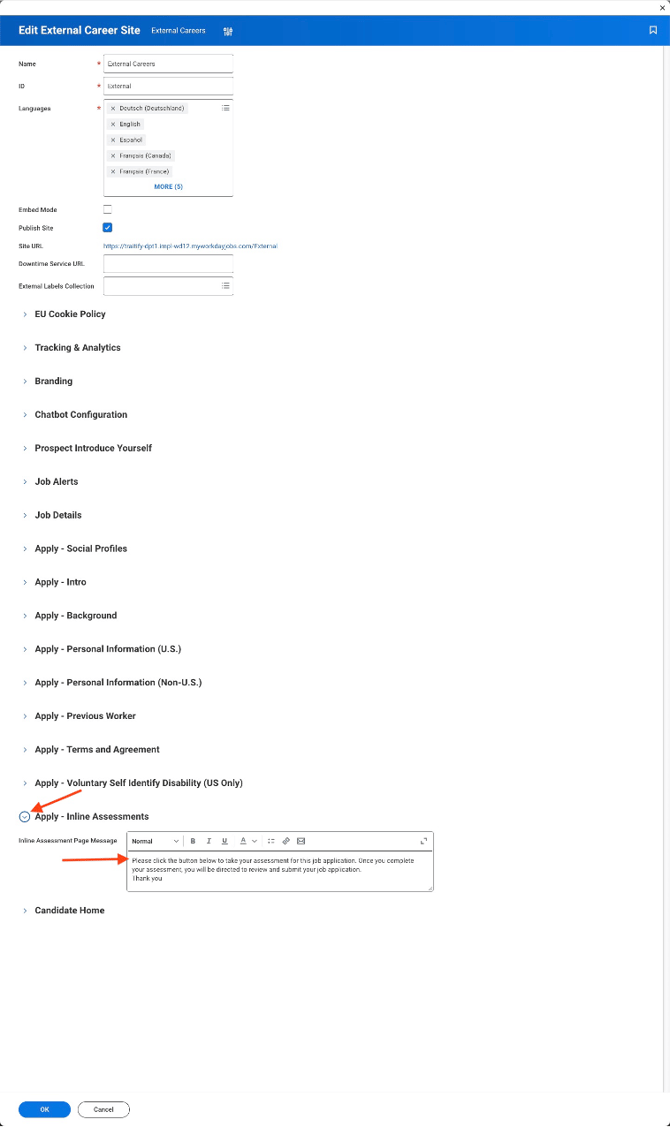
Step 9: Edit the external career
Edit the external career site to add the pre-assessment instructions provided by Traitify. These instructions appear to candidates before they begin the assessment and should be provided by your Traitify account manager.
Step 10: Viewing assessment results in Workday
Once a candidate completes an assessment, the results will be available under the screening tab of the candidate's profile.
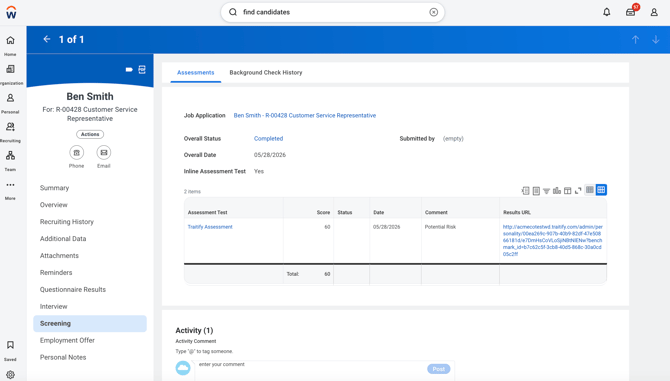
Traitify will return three assessment values:
- Score
- Comment
- Result URL
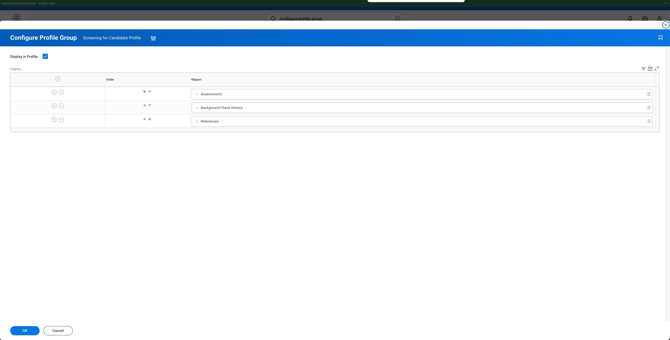
If the assessment table is missing from the Screening tab, double check that this has been enabled from the candidate profile group.