![Crosschq Logo 534x115.png]](https://support.crosschq.com/hs-fs/hubfs/Crosschq%20Logo%20534x115.png?height=40&name=Crosschq%20Logo%20534x115.png)
Users with administrative permissions can edit Crosschq Interview settings. To access these settings, click the settings wheel icon in the top-right menu and select Organization Settings.
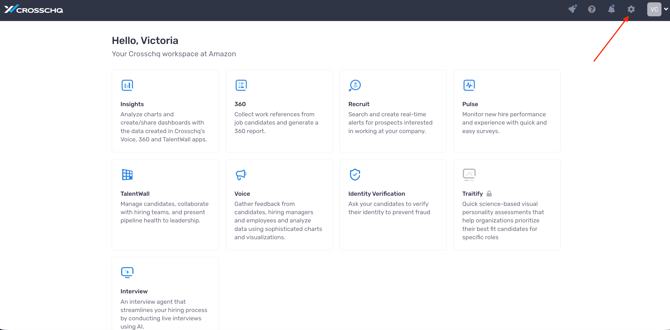
The Crosschq Interview Settings menu is organized into the following sections:
General Settings
Candidate and team member notifications are no longer managed in Organization Settings. SMS, reminder schedules, weekend pausing and requestor notifications are now configured per message in Interview > Message Templates. For more information, see Managing Message Templates in Crosschq Interview.
Interview Settings
Configure general behavior for interviews in your organization.
Diversity/Bias Questions — enable or disable optional demographic questions at the end of the interview. When enabled, candidates are asked questions to support bias analysis and diversity and inclusion reporting. These questions help evaluate fairness in the interview process. Responses are always optional for candidates.

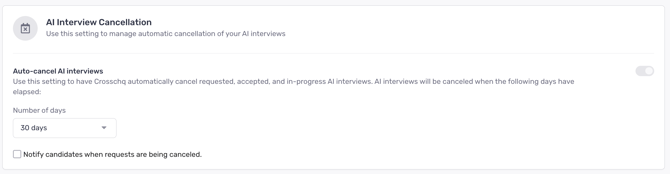
AI Interview Cancellation
Configure the conditions under which an AI interview is automatically cancelled.
Auto-cancel AI interviews — when enabled, Crosschq will automatically cancel any requested, accepted, or in-progress AI interviews after a specified number of days have elapsed without completion. Use the Number of days dropdown to set the cancellation threshold. The default value is 30 days.
Check Notify candidates when requests are being canceled to send an automatic email notification to candidates whose interview is being cancelled.
Report Settings
Report Scores
Control which scores are calculated and displayed on the Crosschq Interview Report.
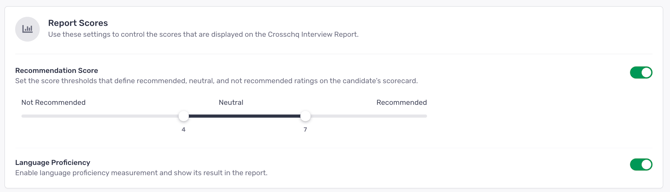
Recommendation Score — enable or disable the recommendation score on the candidate's scorecard. When enabled, a slider is displayed to configure the score thresholds that define each rating level:
- Not Recommended: scores below the lower threshold.
- Neutral: scores between the lower and upper thresholds.
- Recommended: scores above the upper threshold.
Drag the slider handles to adjust the thresholds. The current threshold values are displayed below the slider.
Language Proficiency — enable or disable language proficiency measurement. When enabled, the AI agent assesses the candidate's language proficiency during the interview and displays the result in the report.
PDF Generation
Configure whether a PDF version of the interview report is generated automatically.

Enable PDF Generation — when enabled, a PDF version of the Crosschq Interview Report is automatically created when an interview is completed or concluded. PDF reports are convenient for sharing with stakeholders but are not protected by an account login, meaning anyone with the link can access them.
Fraud Detection
Configure fraud detection analysis for interview reports.

Enable Fraud Detection — when enabled, Crosschq runs a comprehensive fraud detection analysis on all interviews. The analysis evaluates the following signals:
- Device usage
- Email verification
- Identity consistency
- Phone validation
Each signal contributes to an overall risk score, which is mapped to one of three risk levels: Low, Medium, or High. The risk level is displayed in the interview report.
Benchmark & KPIs
Configure which KPIs are displayed in the KPI section at the top of the interview report.
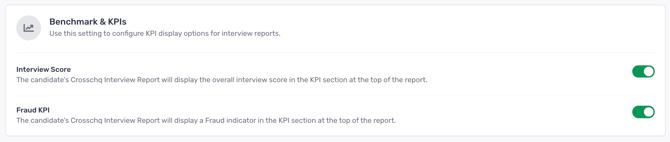
Interview Score — when enabled, the candidate's overall interview score is displayed in the KPI section at the top of the report.
Fraud KPI — when enabled, a fraud risk indicator is displayed in the KPI section at the top of the report. This setting requires Fraud Detection to be enabled.
Agent Settings
Default Agent Settings
Configure the default behavior applied to all Interview Agents in your organization. These settings can be overridden at the individual agent level.
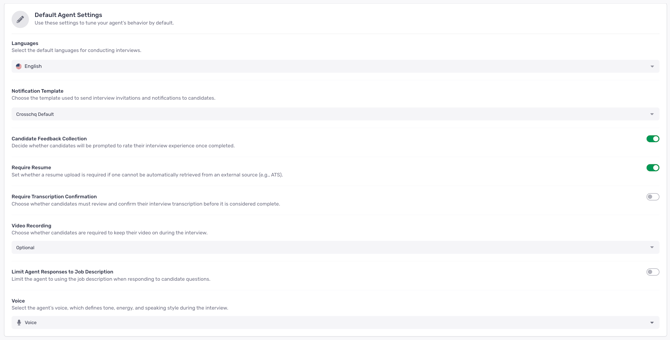
Languages — select the default language in which interviews are conducted. This setting determines the language used by the AI agent during the interview.
Notification Template — choose the email template used to send interview invitations and status notifications to candidates. Select Crosschq Default to use the standard Crosschq template, or choose a custom template if one has been configured.
Candidate Feedback Collection — when enabled, candidates are prompted to rate their interview experience after completing the interview. This feedback is collected for internal reporting purposes.
Require Resume — when enabled, candidates are required to upload a resume if one cannot be automatically retrieved from an external source such as an ATS. Disabling this setting allows interviews to proceed without a resume on file.
Require Transcription Confirmation — when enabled, candidates must review and confirm the accuracy of their interview transcription before the interview is considered complete. This adds an additional step to the candidate experience.
Video Recording — configure whether candidates are required to keep their camera on during the interview. Use the dropdown to select one of the following options:
- Optional — candidates can choose whether to enable their camera.
- Required — candidates must enable their camera to proceed with the interview.
- Disabled — video is not available during the interview.
Limit Agent Responses to Job Description — when enabled, the AI agent's responses to candidate questions during the interview are restricted to information contained in the job description. This prevents the agent from providing information beyond what is defined in the role.
Voice — select the voice used by the AI agent during the interview. The selected voice defines the agent's tone, energy, and speaking style.
Custom Pronunciations
Define specific words or phrases and their phonetic pronunciations so the AI agent pronounces them correctly during interviews. This is useful for company names, technical terms, or uncommon proper nouns.

To add a pronunciation rule:
- Enter the word or phrase in the Word/Phrase field.
- Enter its phonetic pronunciation in the Phonetic Pronunciation field.
- Click + Add New Rule to add additional entries.
To remove a rule, click the trash icon on the right side of the entry.