![Crosschq Logo 534x115.png]](https://support.crosschq.com/hs-fs/hubfs/Crosschq%20Logo%20534x115.png?height=40&name=Crosschq%20Logo%20534x115.png)
Message Templates control every notification Crosschq Interview sends: what each message says, which channels it uses (email, SMS or both), and when reminders are sent. Each message is configured on its own, so you can set different copy and timing for candidates, requestors and interviewers, and for AI-led and in-person interviews.
SMS, reminder schedules, weekend pausing and requestor notifications used to be organization-wide settings in Organization Settings. They are now configured per message in Message Templates.
In This Article
- Accessing Message Templates
- Creating a Template
- Message Groups
- Editing a Message
- Setting When a Message Is Sent
- Candidate Reminder
- Upcoming Reminder
- Scorecard Reminder
- Using a Template
Accessing Message Templates
In Crosschq Interview, click Message Templates in the left menu. The page lists all the templates in your organization. Use the search bar to find a specific template, and click a template to open it.
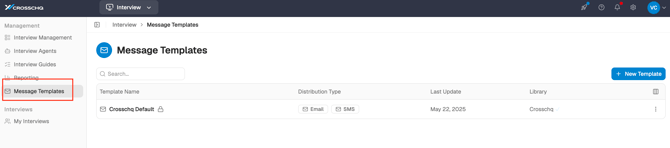
For each template, the list shows its Distribution Type, the date of its Last Update and its Library.
Crosschq Default is the standard template, marked with a lock icon. It cannot be edited. To use different copy or timing, create your own template.
Creating a Template
- Go to Interview > Message Templates and click + New Template.
- The new template opens as a Draft, named with the date and time it was created. Click Rename at the top right to give it a clear name, for example the team or role it is for.
- Edit the messages you want to change. The new template includes all AI interview and in-person interview messages. For more information, see Editing a Message below.
- Click Create Template to save it. To discard the draft, click Cancel.
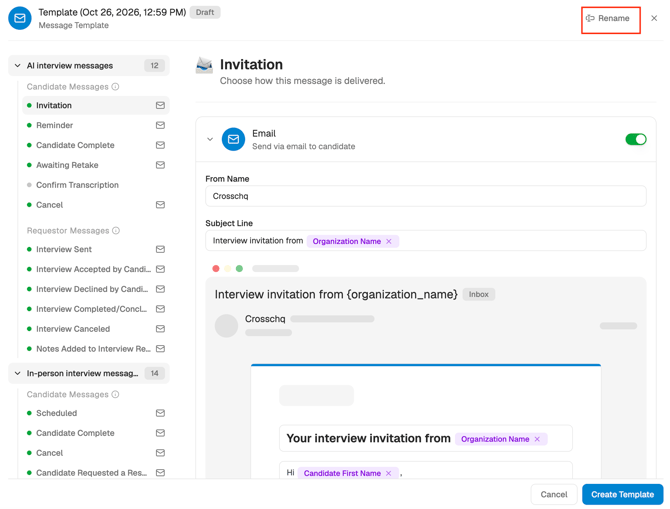
The template is not saved until you click Create Template.
Message Groups
Inside a template, messages are organized by interview type and recipient. The icons next to each message show the channels it supports: email, SMS or both.
AI Interview Messages
In-Person Interview Messages
Editing a Message
Click a message in the list to open it. For each channel:
- Use the toggle to turn the channel on or off for this message. For example, turn off Email to stop sending that message by email.
- Click the arrow next to the channel to expand it.
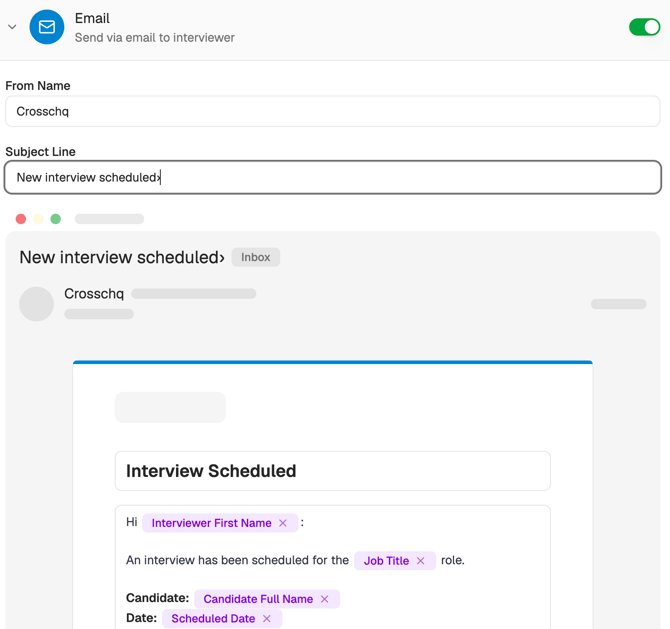
- Edit the From Name, Subject Line, Header and message body.
Messages can include variables, shown as purple chips, that Crosschq fills in for each recipient. For example, Organization Name, Candidate Name, Interviewer First Name and Job Title. Right-click in a field to insert a variable. To remove a variable, click the x on its chip.
The preview shows how the message looks in the recipient's inbox.
Setting When a Message Is Sent
Most messages are sent once, when the event they describe happens. For example, Invitation is sent when the interview is requested. Three messages are reminders with their own timing settings, under When to send:
Candidate Reminder
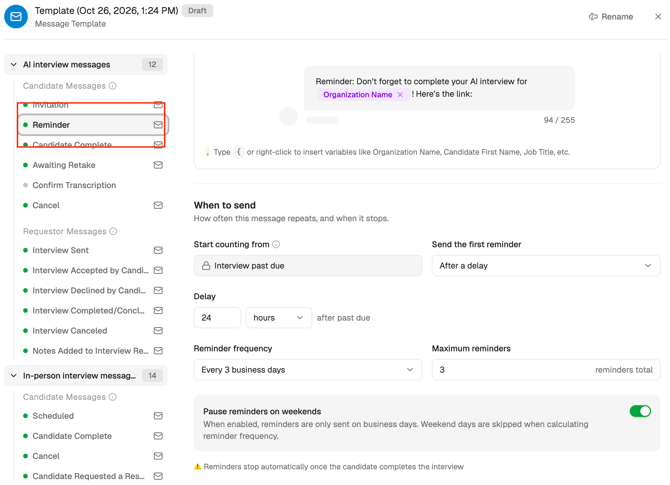
Reminds candidates who have not completed their AI interview. Open AI interview messages > Candidate Messages > Reminder and scroll to When to send:
- Start counting from: Fixed to Interview past due.
- Send the first reminder: Select After a delay and set the Delay, for example 24 hours after the interview becomes past due.
- Reminder frequency: How often the reminder repeats, for example every 3 business days.
- Maximum reminders: The total number of reminders sent.
- Pause reminders on weekends: When enabled, reminders are only sent on business days, and weekend days are skipped when calculating the frequency.
Reminders stop automatically once the candidate completes the interview.
Upcoming Reminder
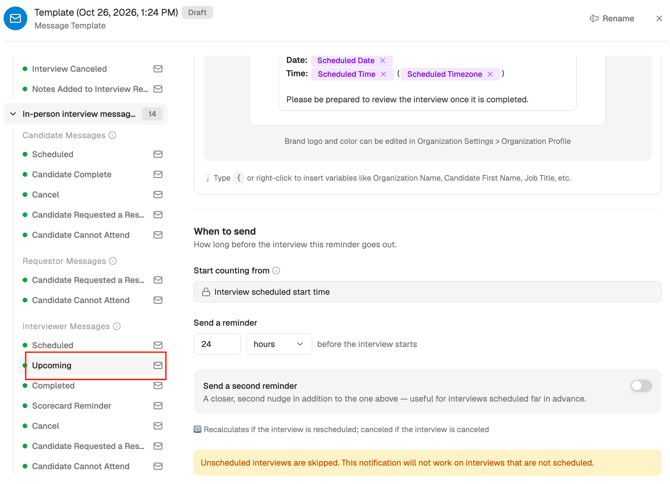
Reminds interviewers before their in-person interview starts, so they have time to prepare. Open In-person interview messages > Interviewer Messages > Upcoming and scroll to When to send:
- Start counting from: Fixed to the interview's scheduled start time. The reminder counts back from it.
- Lead time: How long before the start time the reminder is sent, for example 24 hours.
- Second reminder (optional): Turn on to send another reminder closer to the start time, for example 1 hour before.
Both reminders are sent by email and use the same Email toggle.
- If the interview is rescheduled, the reminder is recalculated from the new time.
- If the interview is canceled, the reminder is canceled too.
Unscheduled interviews are skipped. If the interview has no date and time, no Upcoming reminder is sent.
Scorecard Reminder
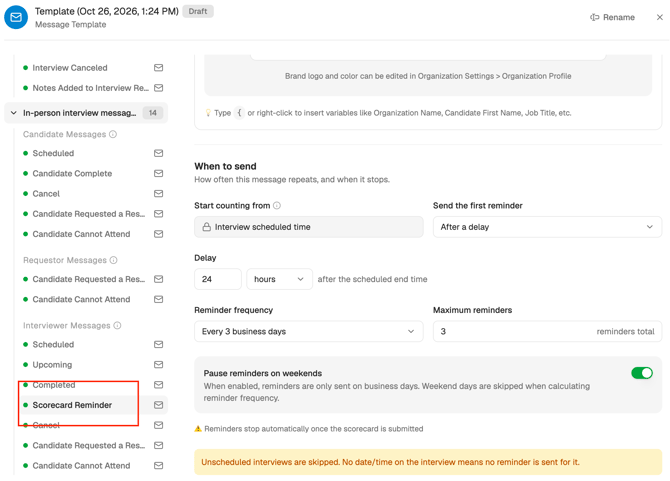
Reminds interviewers who have not submitted their scorecard after an in-person interview. Open In-person interview messages > Interviewer Messages > Scorecard Reminder and scroll to When to send:
- Start counting from: Fixed to Interview Scheduled Time. Crosschq cannot reliably detect when an interview actually ends, so timing always runs from the scheduled date.
- Send the first reminder: Select After a delay and set how long after the scheduled end time, for example 24 hours.
- Reminder frequency: How often the reminder repeats, for example every 3 business days.
- Send up to: The total number of reminders sent.
- Pause reminders on weekends: When enabled, reminders are only sent on business days.
Reminders stop automatically once the scorecard is submitted.
Unscheduled interviews are skipped. If the interview has no date and time, no Scorecard Reminder is sent.
Using a Template
You can choose which template is used in these places:
- Organization default: Organization Settings > Interview > Interview Settings > Advanced > Notification Template. For more information, see Managing Crosschq Interview Settings.
- Interview Agent: The notification template set on the agent. For more information, see Crosschq Interview Agent: Setup and Overview.
- In-person interviews: The Notification Template field on the Setup Candidate screen when scheduling the interview.
Feel free to reach out to our Support team if you have any further questions.